







The visual layer for Git in your own repos: simulate, record, replay, audit, and share individual Git commands or entire Git workflows, wherever you or your agents run them.
|
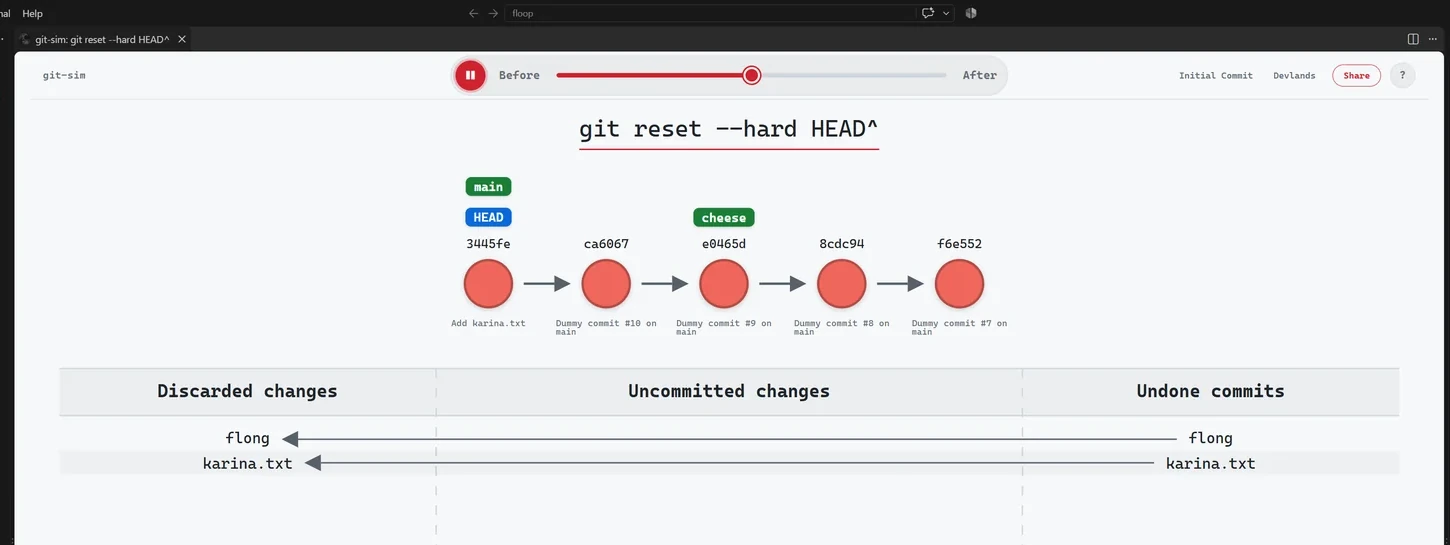
Simulate any Git command before you run it, as a web-first, embeddable, interactive graph designed for you to share.
|
|
Watch and record your repo animating in real-time, every Git operation, human or agentic, as a visual command sequence you can save, replay, and share.
|
|
Use git-sim without ever leaving your editor: Leverage git-sim right in your IDE with the VS Code extension (also works in Cursor, Windsurf, and VSCodium).
|
|
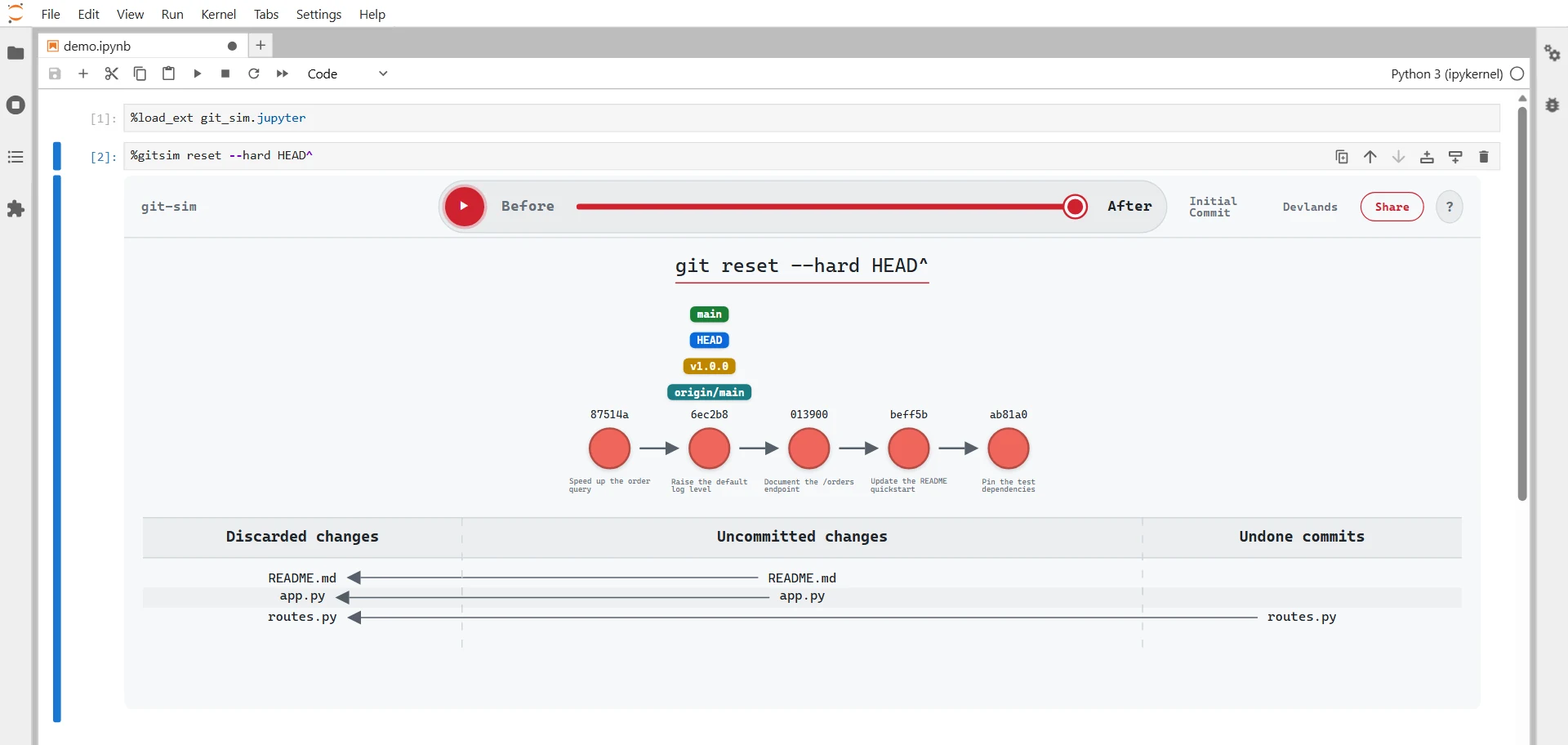
Integrate with Jupyter: Invoke git-sim within Jupyter to render Git simulations inline in your notebooks.
|
|
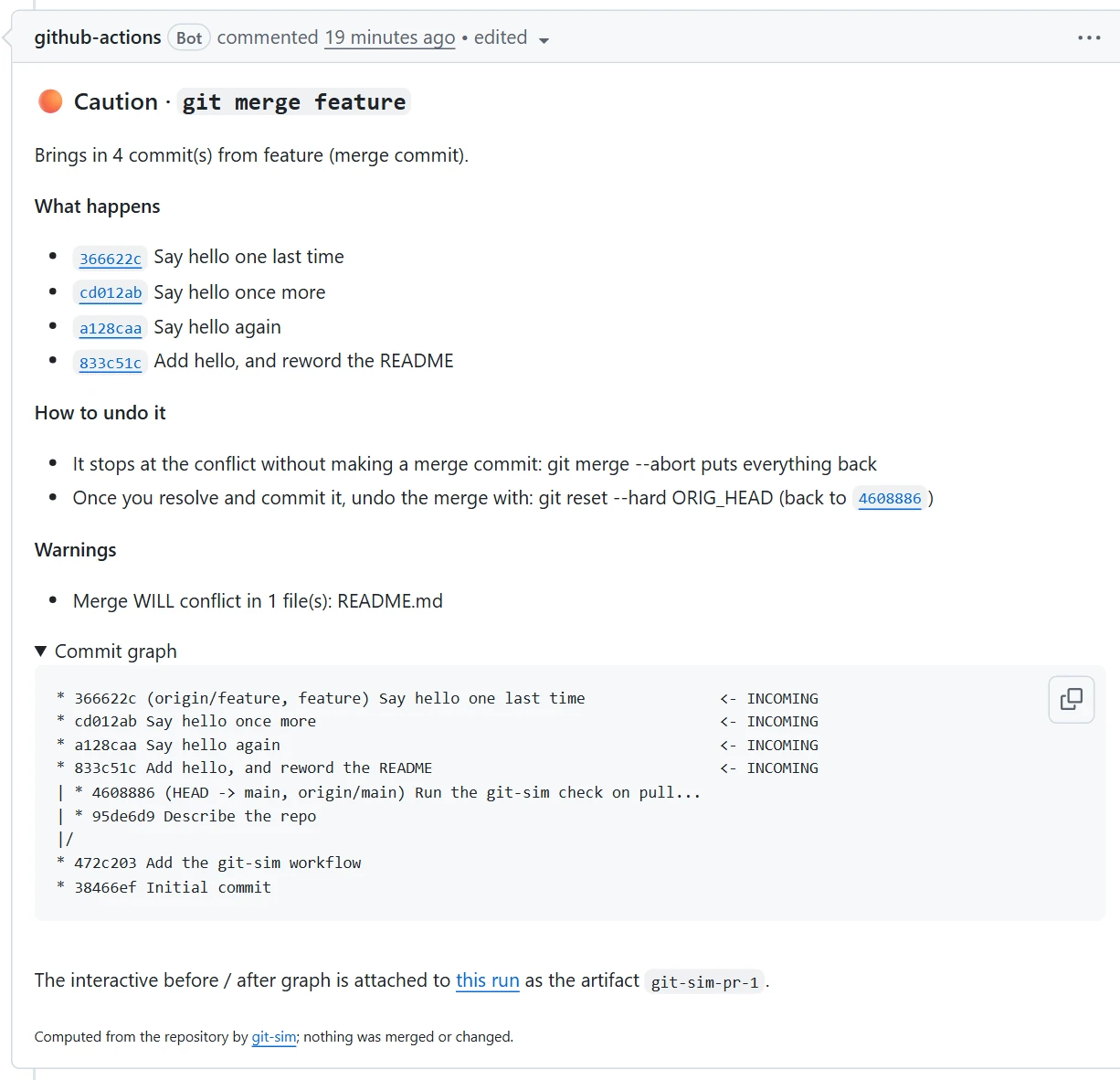
Automatically run git-sim on GitHub PR's: The git-sim GitHub Action generates both textual and visual descriptions of the resulting PR merge, whether it is safe, and how to undo it.
|
|
Catch and review risky Git commands from AI agents in real time, before they harm your work. Wires into Claude Code, GitHub Copilot, Cursor, Codex, Gemini CLI, and any MCP agent.
|
|
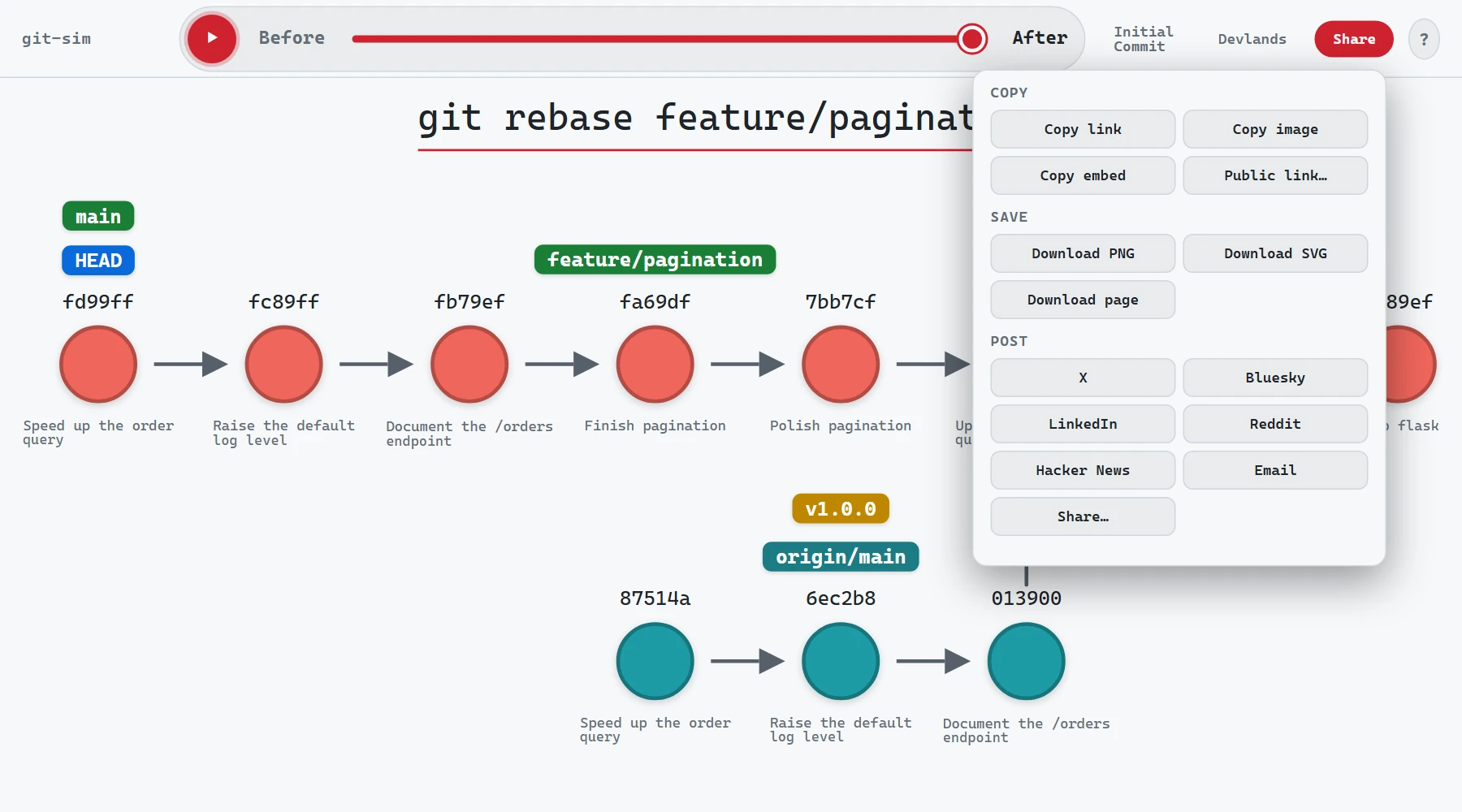
Share any git-sim visualization as a link, an embed, an HTML page, a PNG or SVG image, an MP4 video, or a social post.
|
If git-sim helps you, ⭐ star the repo or sponsor it on GitHub.
- Windows, macOS, or Linux
- Python 3.10 to 3.14, and Git
- Animated video (
--animate) needs Manim: see Installation
Minimal Linux distros such as those on servers, Docker images, CI runners, and WSL often lack the following required dependencies: libEGL, libGL, and fontconfig. If git-sim errors and prompts for them, use the command below that applies to your Linux flavor:
$ sudo apt install libegl1 libgl1 libfontconfig1           # Debian, Ubuntu, WSL
$ sudo dnf install mesa-libEGL mesa-libGL fontconfig # Fedora, RHEL1. Install git-sim
$ pip install git-simOr pipx install git-sim, or uv tool install git-sim.
2. Simulate any Git command: in your local repo, prefix any Git command with git-sim instead of git
$ git-sim merge dev
$ git-sim reset --hard HEAD^
$ git-sim rebase main
By default, git-sim creates a web-first, shareable visualization that opens in your browser. It generates an interactive simulation of exactly how any Git command will impact your repo, without actually running the real Git command so nothing changes in your repo.
Run git-sim -h to list all commands.
3. Watch your repo update in real time: a live graph that animates each Git operation in sequence, recording it so you can save, replay, and share it
$ git-sim live4. Install the git-sim VS Code extension: Use all git-sim functionality directly in VS Code via the integrated command palette tools.
$ code --install-extension initialcommit.git-simOr search for git-sim in the Extensions view (the Marketplace in VS Code, Open VSX in Cursor, Windsurf, and VSCodium).
5. Jupyter Notebook integration: use git-sim inside Jupyter after installing it in the notebook's Python environment:
%load_ext git_sim.jupyter   # once per notebook: adds the %gitsim magic
%gitsim rebase main         # the interactive graph, right under the cell
%gitsim live                # a live graph that follows the repo as it changes
%gitsim live stop           # stops live mode (so does restarting the kernel)
From Jupyter, git-sim simulates Git commands against the repo in the notebook's working directory, or path specified after the -C flag.
The graph's frame grows to fit it unless you set --height in pixels.
%gitsim live runs live mode in the background until you stop it or restart the kernel, and needs Jupyter running on your own machine (not Colab, JupyterHub, or Binder).
6. GitHub PR integration: See Installation.
7. Check a risky command before it runs: how risky it is, and what you could lose
$ git-sim preflight reset --hard HEAD~18. Connect your AI agents: add the pre-flight hook and MCP server to the agents on your machine
$ git-sim wire-agentsNo Git repo handy to visualize? The bundled git-dummy creates Git repos in whatever structure you want to play with:
git-dummy --scenario orders builds the sample repo the graphs in this README are drawn on (--scenario orders-behind for fetch and pull), so you can run the same commands in it.
By default, when you run git-sim it generates an interactive Git graph which opens in the git-sim viewer at initialcommit.com, but the graph's data is compressed and placed in the link's #fragment, which browsers never send to the server, so nothing about your code leaves your local machine.
For example, git-sim branch feature opens a link like the one below, shortened here (the full link is about 2,000 characters):
https://initialcommit.com/tools/git-sim/viewer#d=eNrNWdtu2zgQ_RVBxaK7QEzzTqmIDbjJusWifdkC-06LlK1GlgxJiZP9-h3q4lvcpqqdrf1gmJSGnDOXw-H4unyYe4kZ-...&t=git+branch+feature&m=light&p=git-sim-branch_10-04-26_19-02-11.html
Everything after the # stays in your local browser: d is the compressed graph, t is the command, m is the color theme, and p is the name of the graph file saved on your machine. All the site receives is https://initialcommit.com/tools/git-sim/viewer.
The page is also saved locally, and --open-in local (or git_sim_open_in=local) opens that file offline instead, without invoking the git-sim viewer on initialcommit.com at all.
The one exception is a public link, which you may decide to create with the Share → Public link option. Generating the public link stores the git-sim graph data on initialcommit.com servers. The link is shortened for convenience and shows the graph itself when posted, and you'll also be provided a link to delete the stored graph data at any time.
To enter git-sim's live mode, browse into any local Git repo and run:
$ git-sim live
Run git-sim live to record every Git operation executed by you or your AI agents in real-time as a visual, interactive session you can replay and share.
It names, animates, and tracks every change to your Git repo, so you can step back through any of them, replay the whole session, save it as a single HTML page, or download it as a video.
By default, the page opens in the git-sim viewer on initialcommit.com which connects to a lightweight web server git-sim live runs on your machine, reachable only from 127.0.0.1 and with a session key. All Git data is compressed and stored in the URL #fragment, so nothing about your repo leaves your machine, and --open-in local serves the page from git-sim itself instead if you prefer not to invoke initialcommit.com's git-sim viewer and run purely local.
Runs inside VS Code: the VS Code extension shows the same live graph in its Live graph tab and sidebar view (see the extension's page).
How it watches your repo: live mode reads what Git reports between checks, rather than watching .git, and waits for the repo to settle, so a rebase or a pull shows as one change. It names each change from the reflog when it can (git commit, git reset <commit>, git switch -c <branch>), and otherwise from what changed (a branch created, a file staged, a stash popped). Chrome and Edge ask once for permission to reach the local server. If a browser refuses, the page offers the local version.
Useful options:
-C <path>: follow another repo
--no-zones: the commit graph alone, without the working directory table
--interval <seconds>: how often to check (default 1)
--sessions, --replay: list this repo's recorded sessions, or reopen the latest (--session <folder> for another)
--once: draw the current state and exit
--json: print one JSON line per change instead of opening a page, for editors
--port <number>: the local server's port
-d: open nothing, and just print the addresses
Set GIT_SIM_LIVE_DEBUG=1 to log each detected change.
Embed a git-sim graph in any web page, blog post, tutorial, or docs. Includes the full interactive viewer. Click Copy embed in any git-sim graph's Share menu, and paste the HTML into your page:
<div class="git-sim" data-graph="eJzVXWtvo0gW_SuI0a52..." data-title="git rebase main">
<a href="https://initialcommit.com/learn/git/go?cmd=rebase&from=embed">git rebase</a> main, created with <a href="https://initialcommit.com/tools/git-sim">git-sim</a>
</div>
<script src="https://initialcommit.com/js/tools/git-sim-embed.js" defer></script>The compressed graph data travels inside the data-graph attribute, so there's no file to host.
To host it as a file instead, save the SVG with git-sim --img-format svg rebase main (or Download SVG in the Share menu), and use data-src="/path/to/graph.svg" in place of data-graph.
$ git-sim preflight reset --hard HEAD~2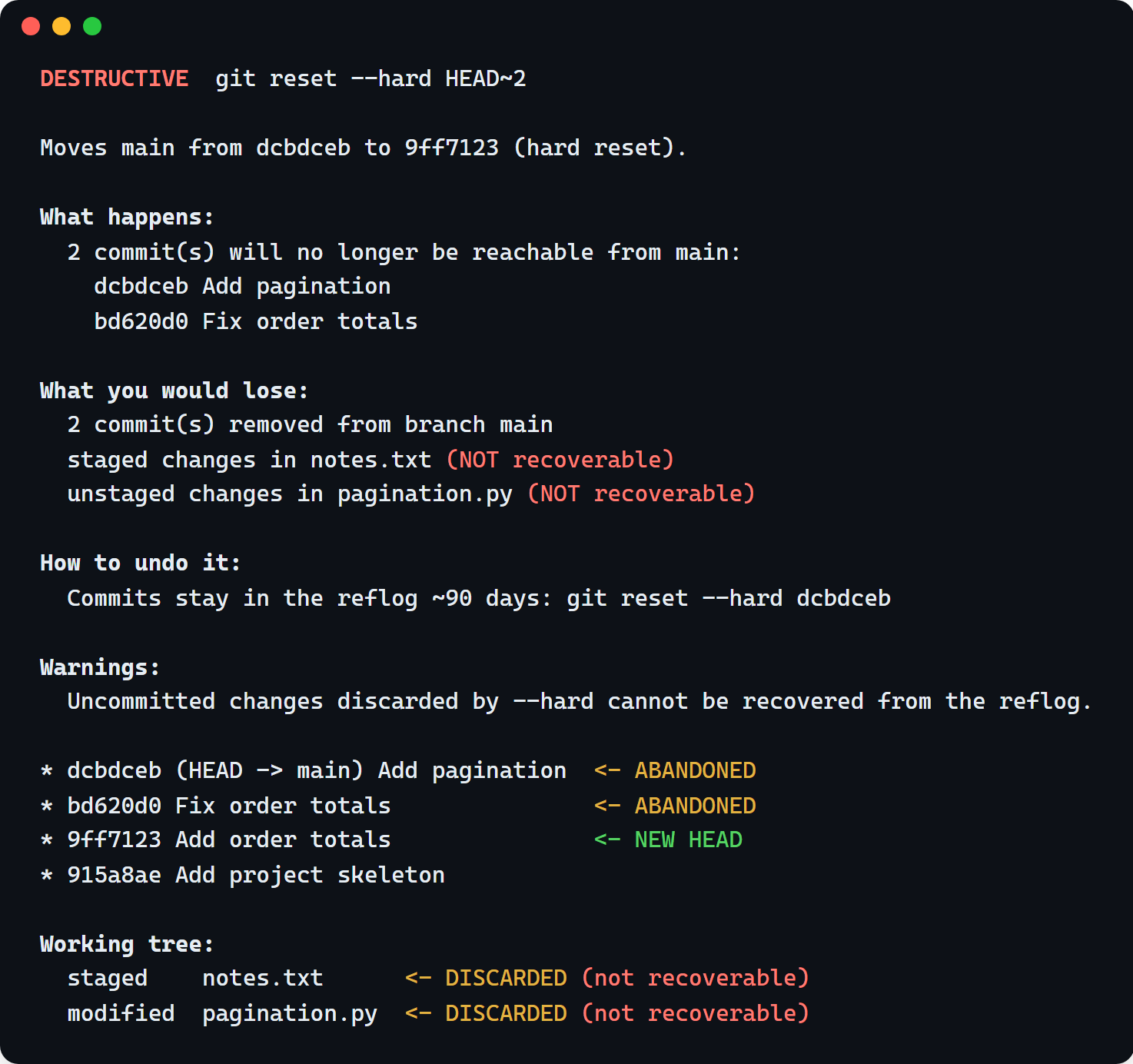
git-sim's pre-flight mode shows a deterministic evaluation of whether any Git command is safe or potentially destructive to your repo, including how risky it is, which commits might become unreachable, which changes would be lost for good, and the command that undoes it, all without impacting your repo.
This can be wired into AI agents to bring yourself (the human) into the loop to approve/deny Git commands that could be destructive. Run git-sim wire-agents to set up the automatic git-sim pre-flight for AI agents.
Git's flags and options pass straight through, and quoting the whole command works: git-sim preflight "git stash drop").
Format the report with --json or --markdown as needed.
AI coding agents run Git commands for you. git-sim helps you and your agents do the right thing in two ways:
- A git-sim pre-flight hook stops the agent before it runs a risky Git command, presents you with the details of what the command will do and how to undo it, and asks you to approve or deny it.
- The git-sim MCP server gives the agent two tools it can call as needed:
git_preflight(command, repo_path)to check if a command is safe to run, andgit_simulate(command, repo_path)to visually simulate the command (interactive=truefor the interactive page).
To set up both in every agent on your machine, run:
$ git-sim wire-agents
$ git-sim unwire-agents
Then restart any agents that are running. Wire-agents sets up both the hook and MCP server in Claude Code, Codex CLI, Cursor, GitHub Copilot CLI, Gemini CLI, and VS Code (Copilot), and the MCP server only in Windsurf, Cline, Roo Code, Amazon Q Developer CLI, and Claude Desktop, which have no hooks.
-Designate specific agents with: --agent claude --agent cursor
-Skip hook or mcp as desired: --no-hook or --no-mcp
-Dry run with: --dry-run
-Remove hook and mcp configuration with: git-sim unwire-agents
Here's an example of what Claude Code prompt looks like if it tries to run a hard Git reset:
git-sim preflight: DESTRUCTIVE  git reset -q --hard HEAD~2
Moves main from e35b0b7 to cb54632 (hard reset).
Loses: 2 commits removed from branch main; unstaged changes in README.md (NOT recoverable)
Undo: Commits stay in the reflog ~90 days: git reset --hard e35b0b7
Hook settings
Set these as environment variables:
| Variable | Default | What it does |
|---|---|---|
GIT_SIM_HOOK_ASK_ON |
caution |
The lowest risk that stops the agent: caution or destructive |
GIT_SIM_HOOK_MODE |
ask |
ask prompts you, deny denies risky commands outright (for unattended runs), warn lets them run with the facts attached |
GIT_SIM_HOOK_RENDER |
1 |
0 skips drawing the simulation, for just the facts |
GIT_SIM_HOOK_OPEN |
always |
always opens the simulation, never doesn't, ask asks first in a small system dialog |
GIT_SIM_HOOK_OPEN_IN |
hosted |
local opens the saved .html file instead of the git-sim viewer |
GIT_SIM_HOOK_TEXT |
0 |
1 adds the text commit graph to the prompt |
GIT_SIM_HOOK_REPORT_SAFE |
1 in VS Code, 0 elsewhere |
1 adds a one-line SAFE or CAUTION note to Git commands that don't stop the agent |
GIT_SIM_HOOK_AGENT |
detected | Which agent's hook format to answer in (claude, codex, cursor, copilot, gemini) |
GIT_SIM_APPROVE |
Set on a single command to let it through after you've approved it (Codex and Gemini) |
Manual setup example
The hook in Claude Code, in .claude/settings.json or ~/.claude/settings.json:
{
  "hooks": {
    "PreToolUse": [
      {
        "matcher": "Bash|PowerShell",
        "hooks": [{ "type": "command", "command": "git-sim-hook", "timeout": 120 }]
      }
    ]
  }
}
The MCP server in Claude Code:
$ claude mcp add git-sim -- git-sim-mcpOr in any client that supports stdio servers:
{ "mcpServers": { "git-sim": { "command": "git-sim-mcp" } } }Command syntax follows Git's own. Click a command for its usage and options, and a graph to open it in the viewer and drag its slider:
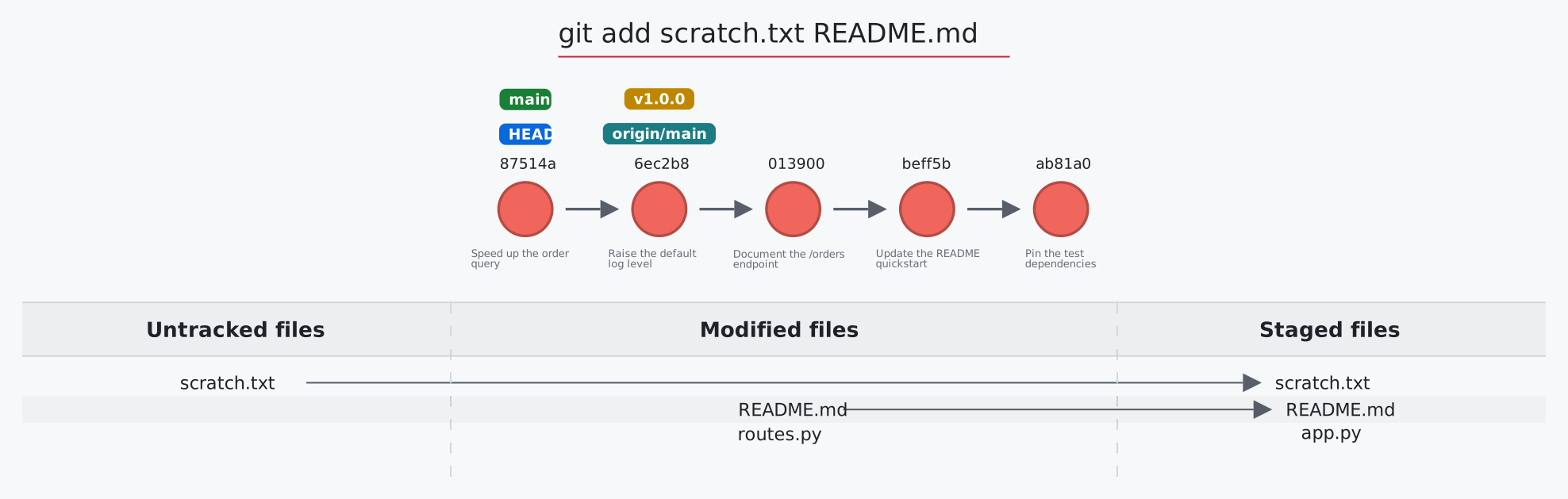
git add: stage files, folders, or everything
Usage: git-sim add <pathspec>... | git-sim add -A
- Specify one or more files or folders, relative to where you run it, as git reads them: a folder stages every change inside it, and
git-sim add .stages everything under the current folder -A/--allstages every change in the repository (modified, deleted and untracked files), wherever it's run from- Simulated output will show files being moved to the staging area
- Note that simulated output will also show the most recent 5 commits on the active branch
git bisect: find the commit that introduced a bug
Usage: git-sim bisect start [<bad> [<good>...]] | git-sim bisect good|bad|old|new|skip [<commit>] | git-sim bisect reset [<commit>]
start <bad> <good>draws thebadandgood-<sha>marks, turns the commits still suspected purple, and movesHEADto the commit git checks out to test next- The next commit comes from git itself (
git rev-list --bisect, and git's own rule when commits were skipped), so the drawing matches whatgit bisectdoes good,badandskipcontinue the session in progress (read fromrefs/bisect/*), markingHEADor the given commit; once one suspect is left it is drawn in gold as the first bad commitresetremoves the marks and returnsHEADto where the session started
git blame: who last changed each line, and in which commit
Usage: git-sim blame <file> [-L <start>,<end>]
- A code view of the file: each line has a colored gutter for the commit that last changed it, with that commit's short hash at the start of each run of lines
- Each of those commits is painted the same color in the graph; lines edited but not committed yet are grey
-Llimits it to a range of lines, as in git (10,20or10,+5)
git branch: create, delete, rename, list, and track branches
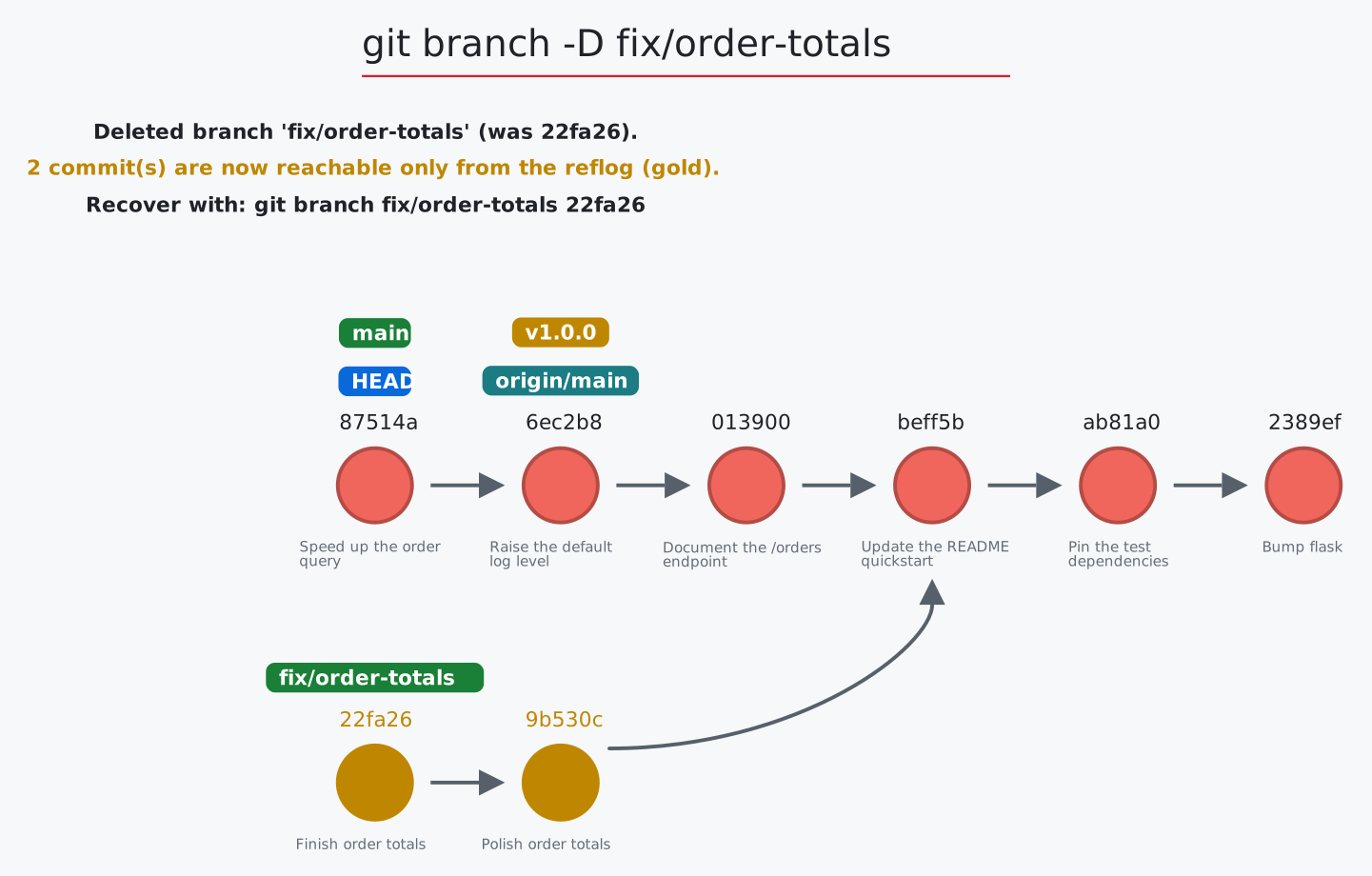
Usage: git-sim branch <new branch name> [<start-point>] | git-sim branch -d|-D <branch> | git-sim branch -m <branch> <new name> | git-sim branch [-a] [-v|-vv] [--merged|--no-merged [<commit>]] | git-sim branch -u <upstream> [<branch>]
- Specify
<new branch name>as the name of the new branch to simulate creation of - Simulated output will show the newly created branch ref along with the most recent 5 commits on the active branch
-ddeletes a branch that is merged into the active branch; git-sim refuses (like git) if it is not-Dforce-deletes: commits that only the deleted branch reached are drawn in gold, with thegit branch <name> <sha>command that brings them back-mrenames a branch, moving its label in place- Without a name, lists the branches: the graph with every branch drawn, and a card listing them with the current one marked.
-a/--alladds the remote-tracking branches,-veach branch's last commit,-vvalso its upstream and how far ahead or behind it is --merged [<commit>]and--no-merged [<commit>](defaultHEAD) highlight the branches git would list: those whose tips are, or aren't, in the commit's history-u <upstream>/--set-upstream-to=<upstream>shows the[branch "x"]lines it writes to.git/config, and the branch's new[upstream: ahead n, behind m]on its label
git check-ignore: which ignore rule decides a path
Usage: git-sim check-ignore [-v] <path>...
- Shows the ignore file with numbered lines and highlights the rule that decides each path; a rule from .git/info/exclude, a nested .gitignore or your core.excludesFile gets a card of its own
- Beside it, each path's verdict: ignored by which line, un-ignored by a
!line, matched by nothing, or tracked, which no ignore rule can undo -v(--verbose) shows whatgit check-ignore -vprints: the source, line and pattern for each match
git checkout: switch branches, or create one
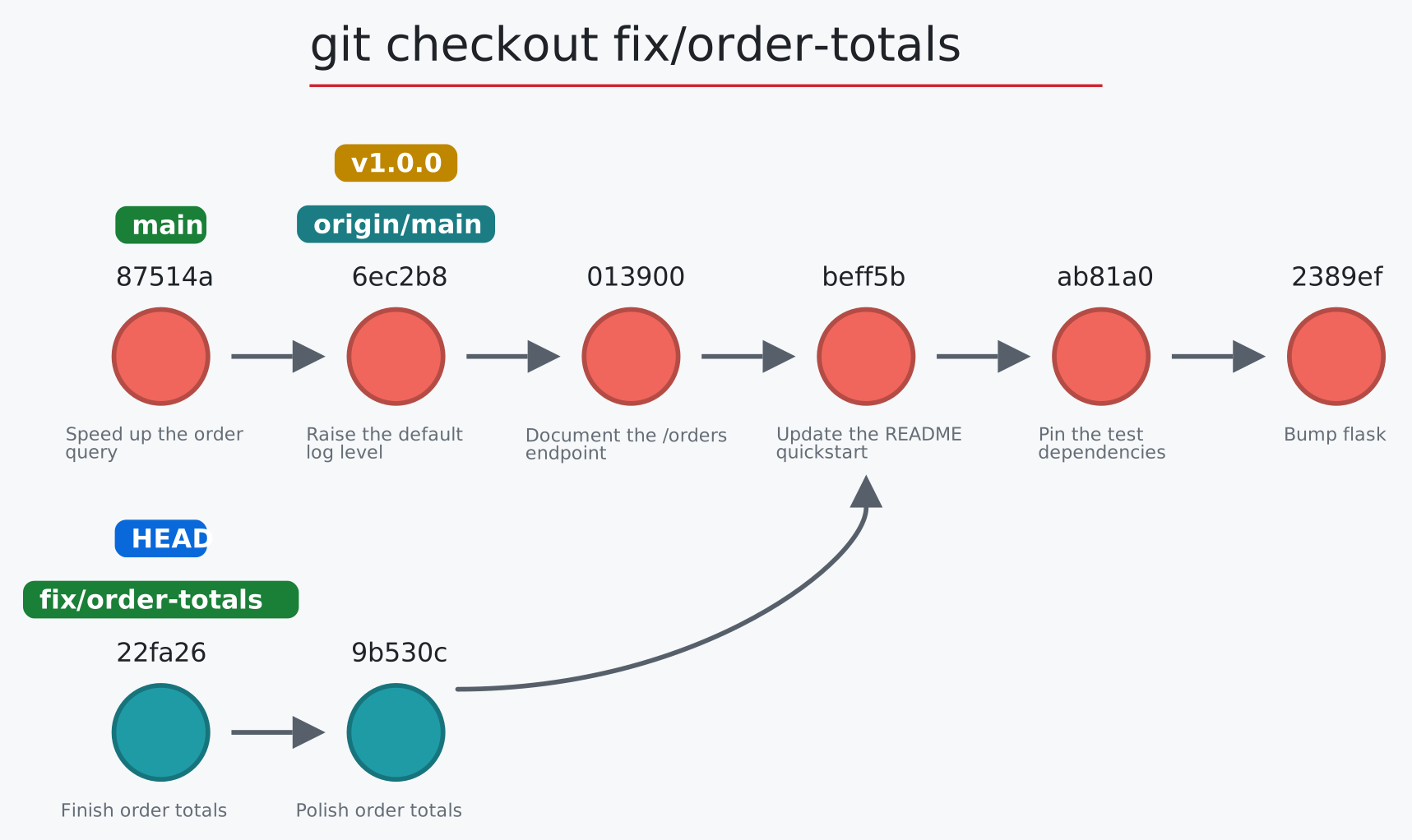
Usage: git-sim checkout [-b] <branch>
- Checks out
<branch>into the working directory, i.e. movesHEADto the specified<branch> - The
-bflag creates a new branch with the specified name<branch>and checks it out, assuming it doesn't already exist
git cherry-pick: copy commits onto the active branch
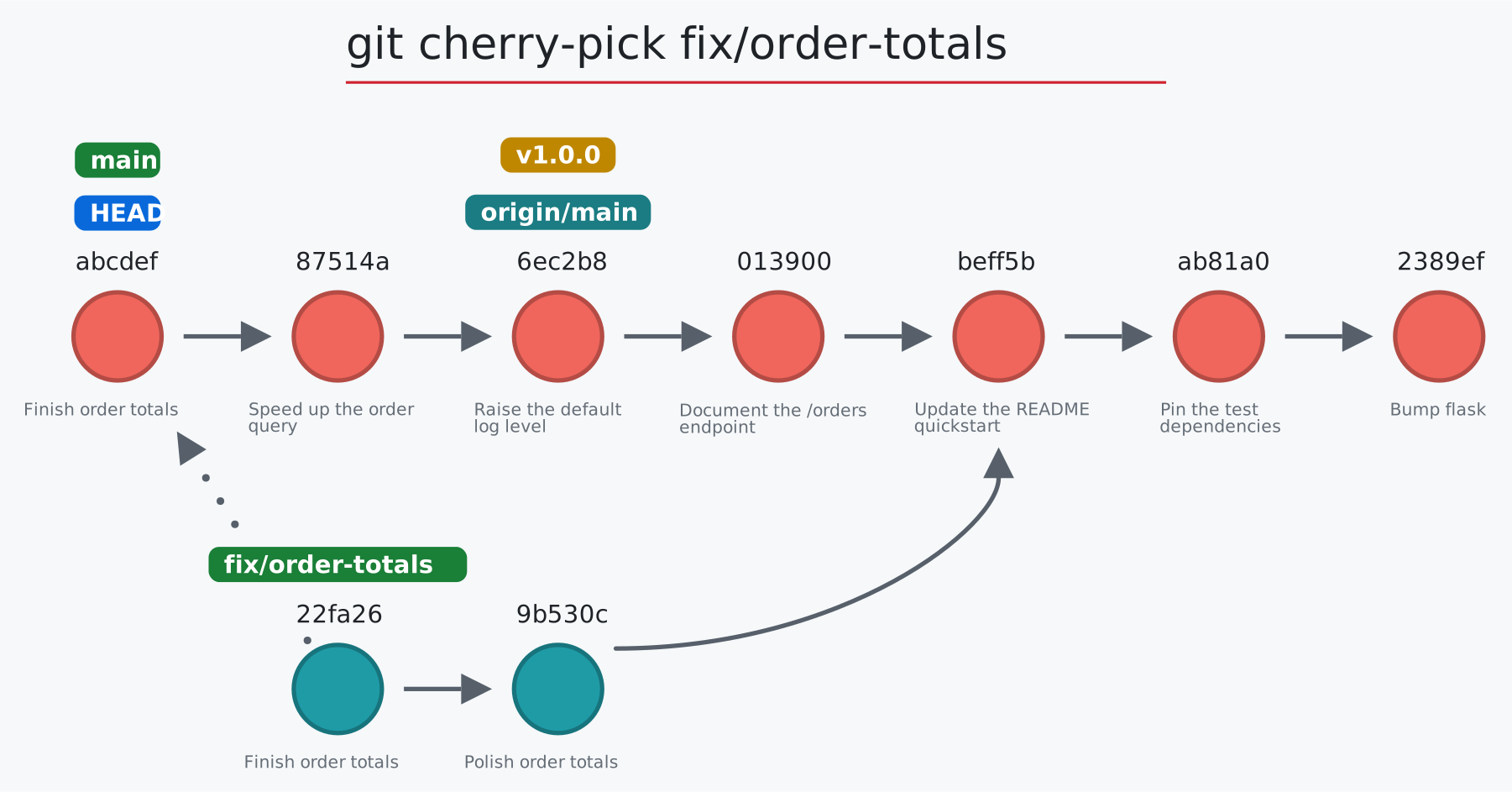
Usage: git-sim cherry-pick <commit>|<A..B> [-n] | git-sim cherry-pick --continue|--abort|--skip
- Specify
<commit>as a ref (branch name/tag) or commit ID to cherry-pick onto the active branch - A range
A..Bpicks every commit reachable fromBbut notA, oldest first, as a chain of new commits -n/--no-commitapplies the changes to the index and working tree without creating a commit- Supports editing the cherry-picked commit message with:
$ git-sim cherry-pick <commit> -e "Edited commit message" --continue,--abortand--skipact on a cherry-pick stopped on a conflict: git-sim runs the real command in a copy of the repository (yours is never touched) and draws what it would do: new commits fade in, HEAD and the branch move, commits left behind turn gold, and a new conflict is listed
git clean: delete untracked files
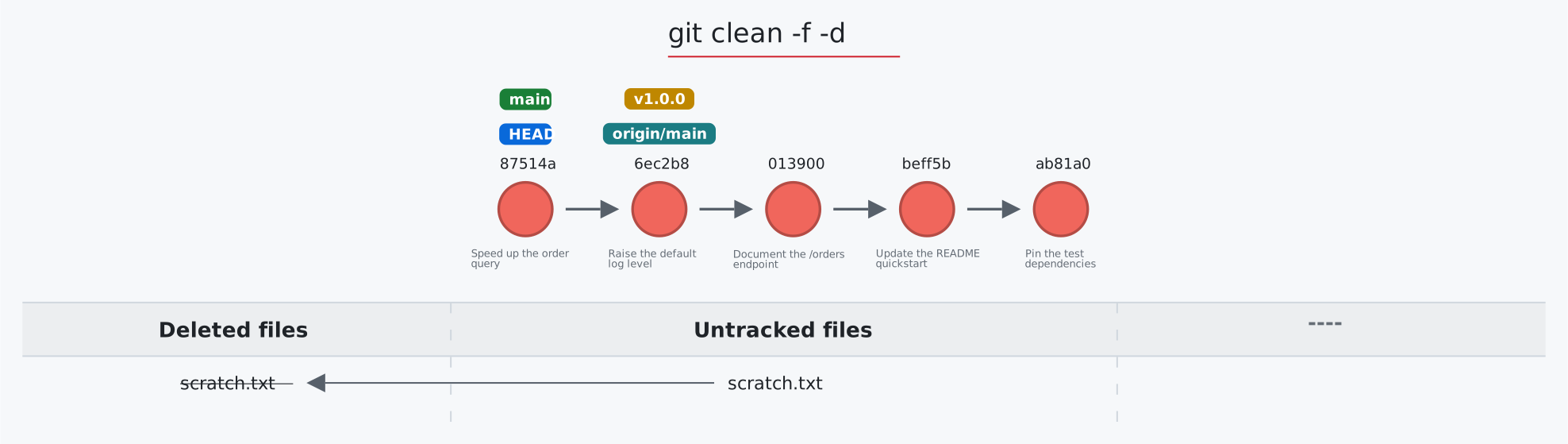
Usage: git-sim clean [-f] [-n] [-d] [-x]
- Simulated output will show untracked files being deleted, taken from git's own dry run (
git clean -nwith the same flags) -dincludes untracked directories,-xincludes ignored files (build output, virtualenvs)- Without
-for-nthe simulation notes that real git would refuse to run - Note that simulated output will also show the most recent 5 commits on the active branch
git clone: copy a repository
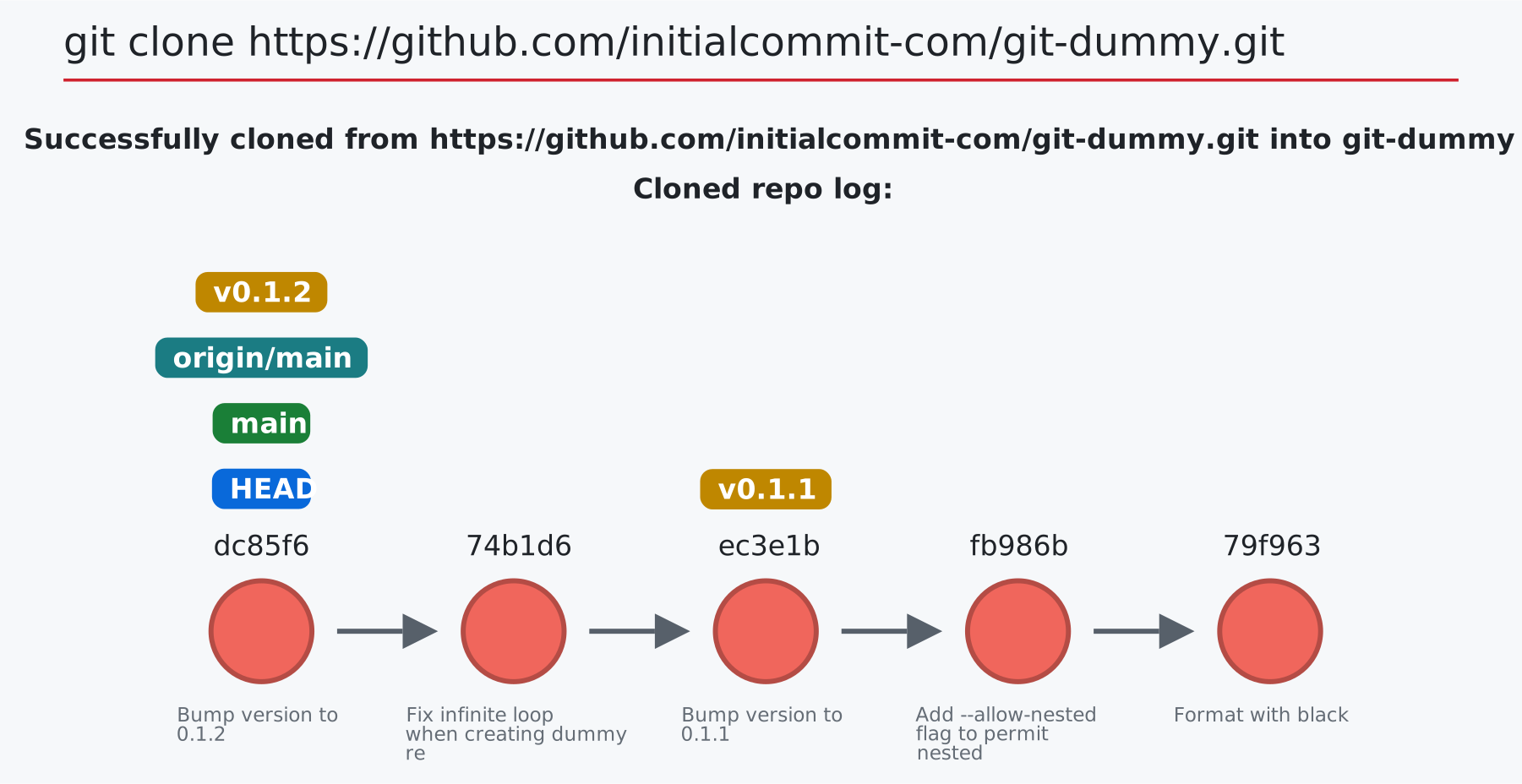
Usage: git-sim clone [--depth <n>] [-b <branch>] <url> [<path>]
- Clone the remote repo from
<url>(web URL or filesystem path) to a new folder in the current directory - Output will report if clone operation is successful and show log of local clone
--depth <n>makes a shallow clone: only the last<n>commits are drawn, and the oldest is markedgrafted, cut off from parents that stay on the server-b/--branch <branch>checks out that branch (or tag) instead of the one the remote's HEAD points at
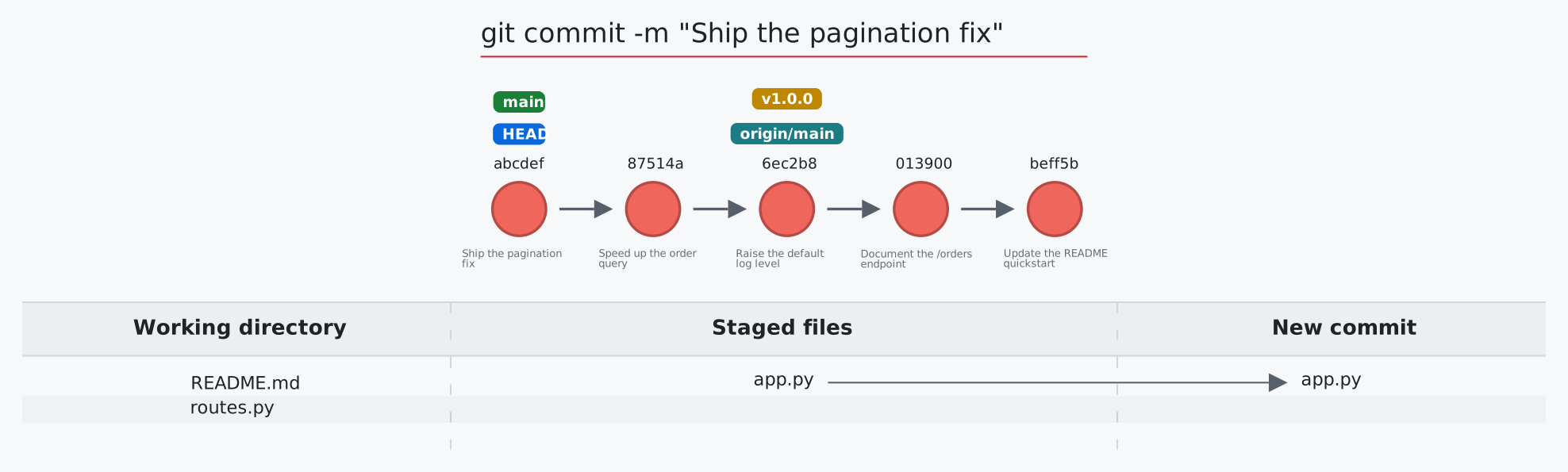
git commit: record staged changes as a new commit
Usage: git-sim commit -m "Commit message"
- Simulated output will show the new commit added to the tip of the active branch
- Specify a commit message with the
-moption - HEAD and the active branch will be moved to the new commit
- Simulated output will show files in the staging area being included in the new commit
- Supports amending the last commit with:
$ git-sim commit --amend -m "Amended commit message" --amend --no-editkeeps the current commit message-astages every modified tracked file first (untracked files are not included)
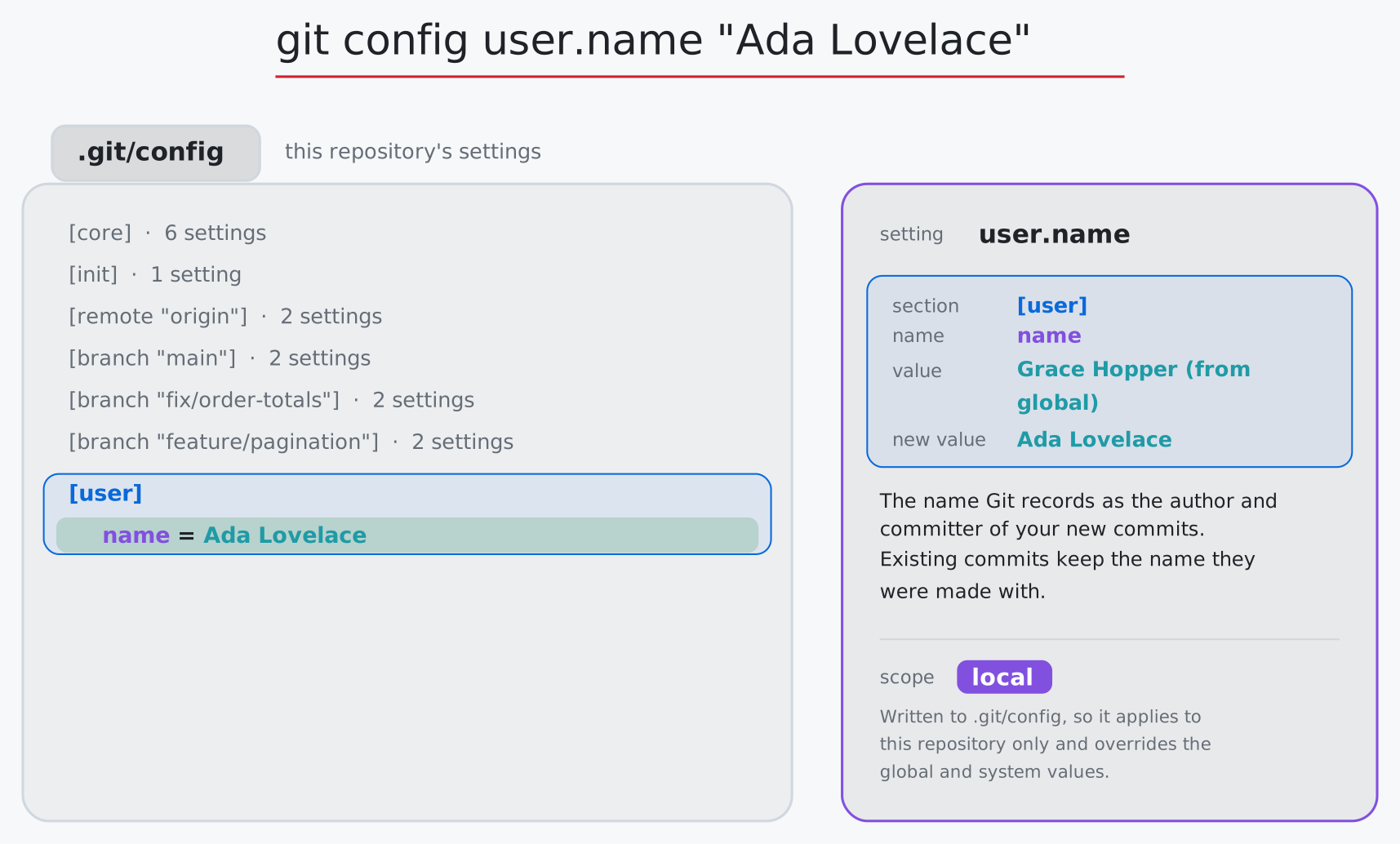
git config: read and write settings, at any scope
Usage: git-sim config [--global|--system] <section.option> [<value>] | git-sim config --list [--global|--system]
- Draws the settings file beside a card that spells out the setting: its section, name, and value (or old and new value), colored to match the lines in the file, what the setting does, and which scope it lands in
- Reading a setting answers from the scope Git would use (system, global or local) and says which one
- Use
--listor-lto show the system, global and local files side by side, in the order they override each other - Use
--globalto read or write your own settings file, ~/.gitconfig, which applies to all your repositories unless one sets its own value - Use
--systemto read or write the system file, which applies to every user and repository on the machine (writing it needs admin rights); git-sim asks Git where that file is
git describe: name a commit after its nearest tag
Usage: git-sim describe [--tags] [<commit>]
- Names a commit (default
HEAD) after the nearest tag in its history, asgit describedoes:v1.0-2-g8c02d5ais 2 commits pastv1.0, thengand the commit's own short id; a tagged commit is named by its tag alone - The graph runs back to the tag: the commits since it are highlighted, the tagged commit takes the tag's color, and the name is labeled on the described commit and taken apart in a card
- Only annotated tags count unless
--tagsis given, as in git; with no tag to count from, git-sim says why (no tags at all, only lightweight ones, or none in that commit's history)
git diff: what changed between two points
Usage: git-sim diff [--staged] [--stat] [<commit> [<commit>]] [<path>...] | git-sim diff <A>..<B> | git-sim diff <A>...<B>
- Shows what the diff goes from and to: HEAD to the working directory ("Unstaged changes"; with something staged it starts from the staging area, which is what
git diffreally compares with), HEAD to the staging area (--staged, alias--cached: "Staged changes"), a commit to the working directory, or one commit to another - Commits are labeled
from/toin the graph;A...Bgoes from their merge base, as git does - Plays in order: the "from" side alone (purple, as a chip under the graph and on its commit), then an arrow to the "to" side (teal), then the card
- The card lists each changed file like
git diff --stat: its status (M, A, D, R), path, lines added and removed, and a five-block bar; arguments that aren't revisions are paths to limit it to --statsums the card up in git's own words: "3 files changed, 10 insertions(+), 2 deletions(-)"
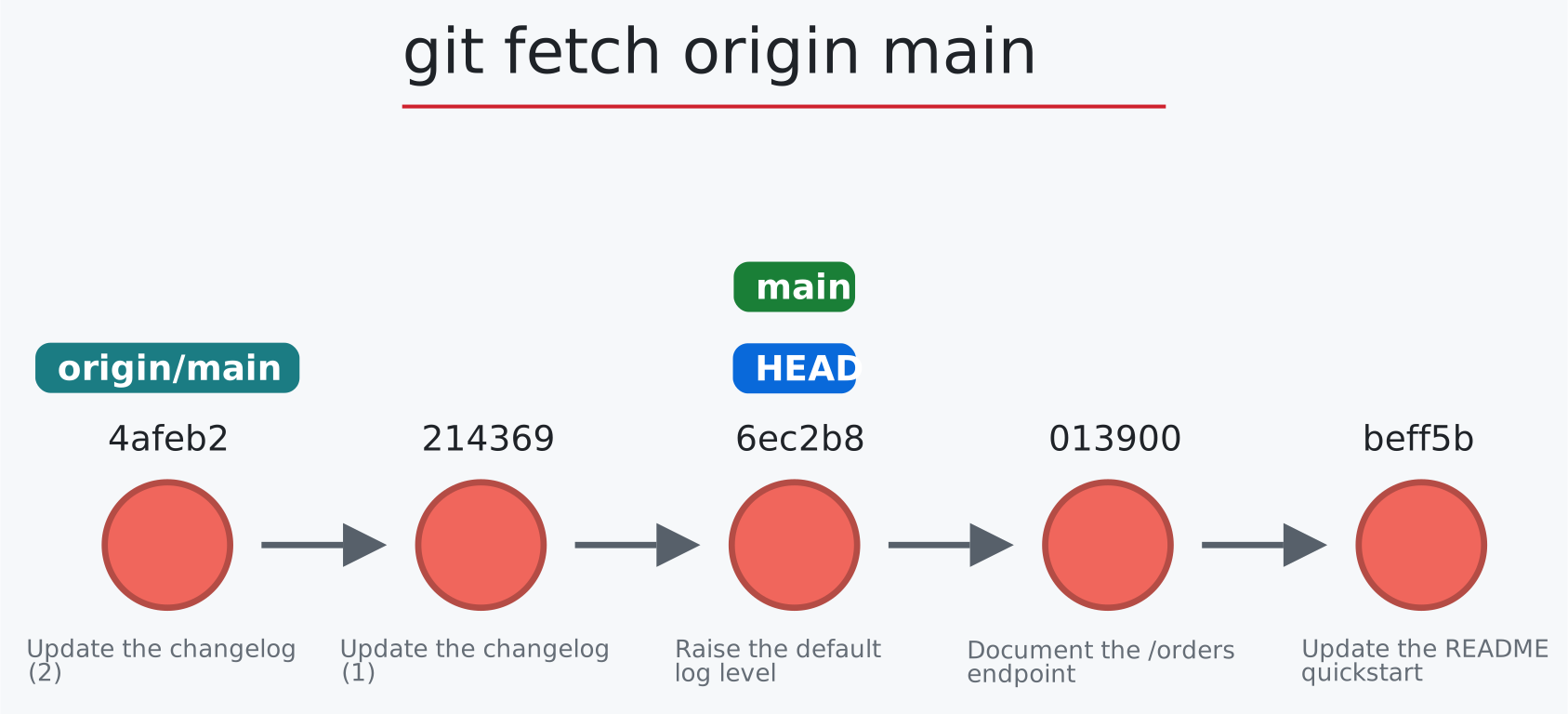
git fetch: download new commits from a remote
Usage: git-sim fetch [--prune] <remote> <branch> | git-sim fetch --all [--prune]
- Fetches the specified
<branch>from the specified<remote>to the local repo --prune/-palso removes remote-tracking branches whose branch is gone from the remote: their labels fade out; without it, a note names the ones that linger--allfetches every remote: the remote-tracking labels each one moves or creates are drawn, with a line per remote saying what it brought (or that it had nothing new)
git grep: search tracked files
Usage: git-sim grep [-n] [-i] <pattern> [<revision>] [-- <path>...]
- Searches the tracked files (or the files of a commit, branch or tag) for a pattern, as
git grepdoes; git itself finds the matches, so its regular expressions apply - A card groups the matching lines by file with each match highlighted;
-n/--line-numberadds line numbers and-i/--ignore-caseignores case - A searched revision is highlighted in the graph; drawn with
--compactand no revision, the card stands alone
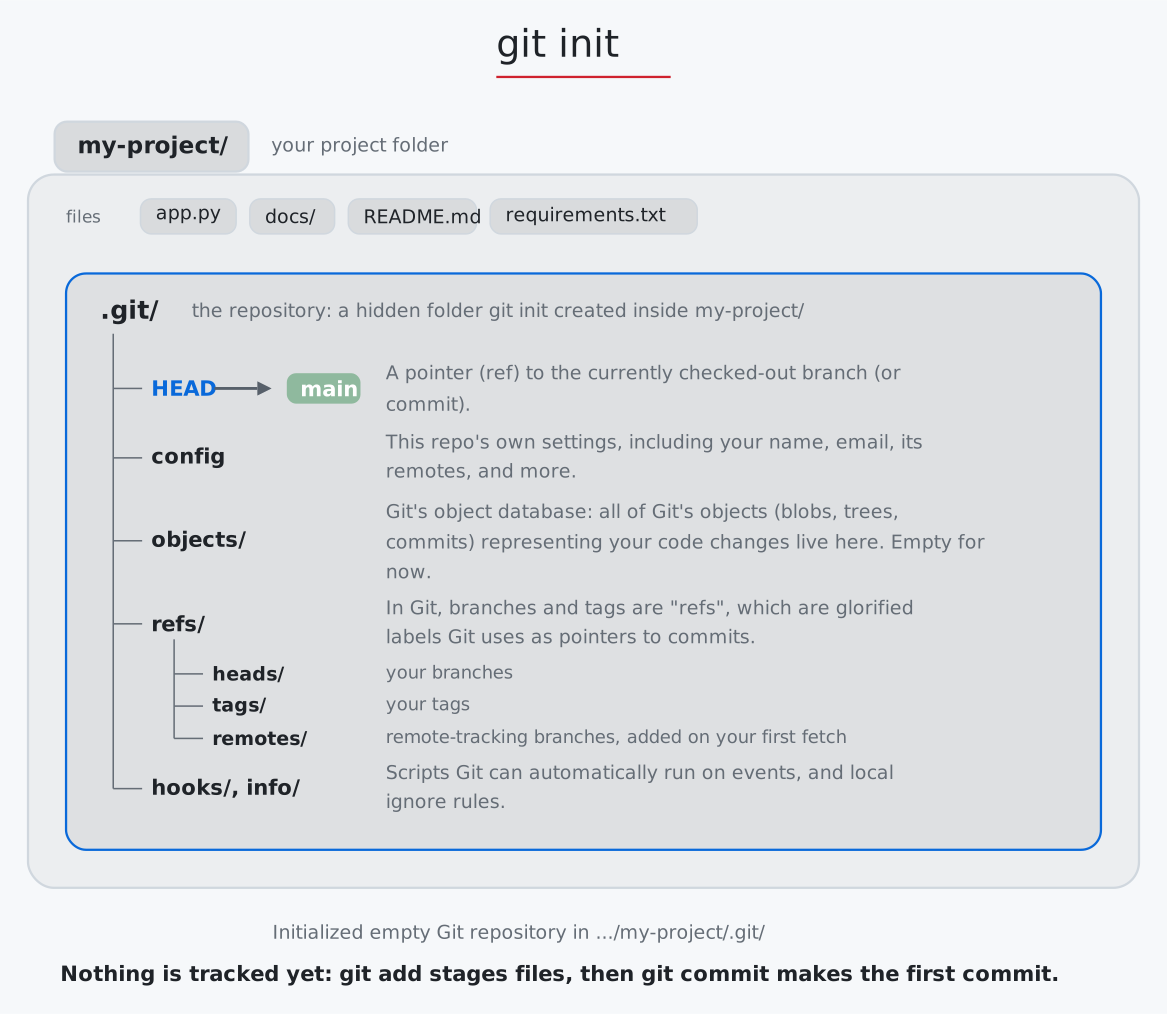
git init: create a repository
Usage: git-sim init
- Before: your project folder and its files; after: the files move up to make room for the new
.git/folder, drawn as a tree of what's inside it (HEAD,config,objects/,refs/and itsheads/,tags/andremotes/,hooks/,info/), each with what it's for - Running it in an existing repository shows that nothing changes, as git reinitializes it
git log: browse and filter the history
Usage: git-sim log [-n <number>] [--all] [--oneline] [--graph] [-p] [--follow] [-S <text>] [--author <name>] [--since|--after <date>] [--until|--before <date>] [[--] <path>...]
- Simulated output will show the most recent 5 commits on the active branch by default
- Use
-n <number>to set number of commits to display from each branch head - Set
--allto display all local branches in the log output --onelineand--graphchange how git prints the list; the drawing is already a graph, so they show in the title- Filters keep the graph and highlight the commits git would list: paths (
git-sim log -- app.py),-S <text>(commits that added or removed the text),--author,--since/--afterand--until/--before. A card says what matched ("3 commits changed app.py") and lists them newest first; with a filter,-nis how many commits git lists --follow <file>carries a file's history back past its renames ("following its rename from main.py");-padds the newest listed commit's patch as a card
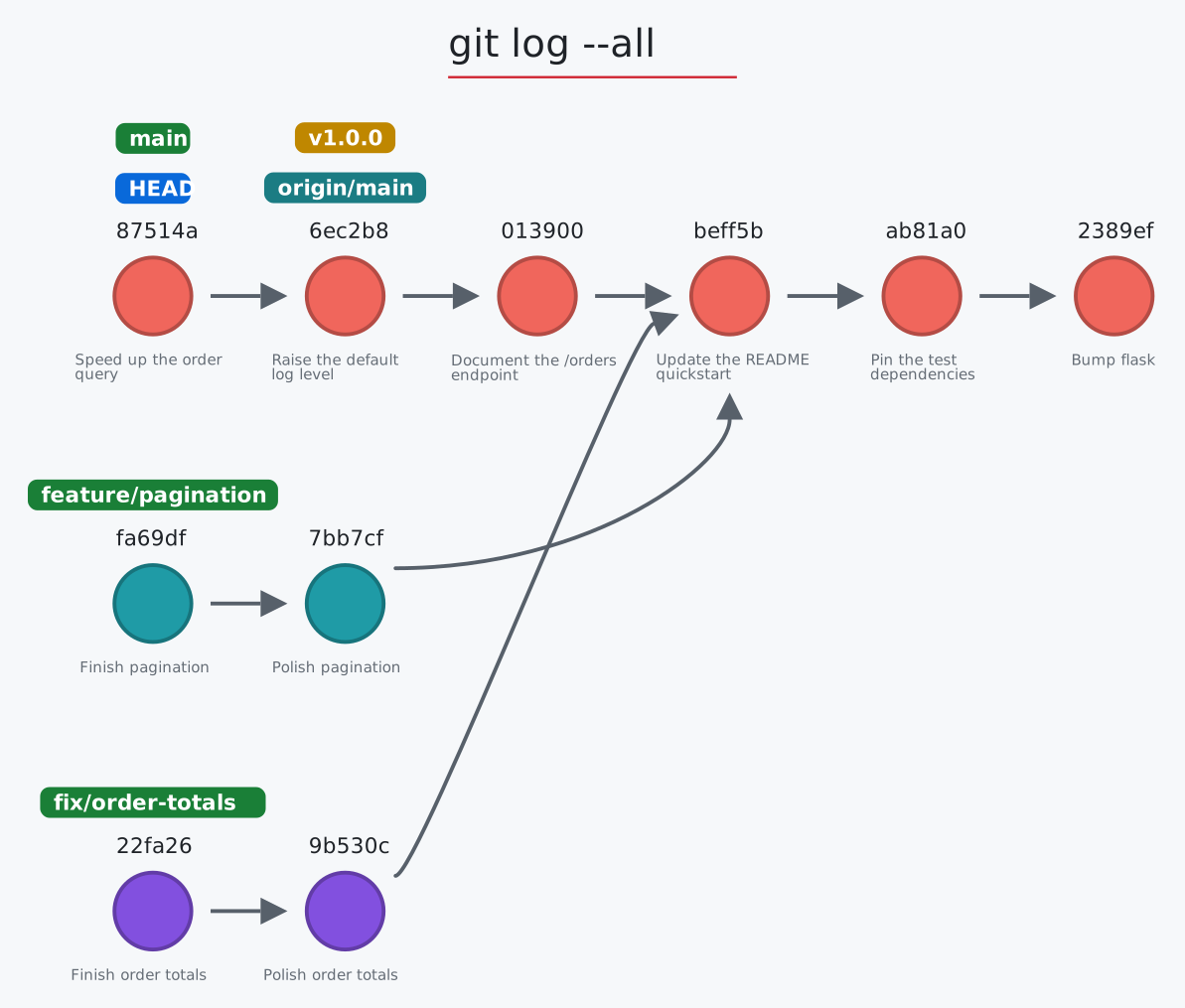
git ls-remote: list a remote's refs
Usage: git-sim ls-remote [<remote>] [--heads] [--tags]
- Lists the refs on
<remote>(default: the current branch's remote, elseorigin): its HEAD, branches and tags with their commits, beside your remote-tracking copies from the last fetch - Each ref that differs is marked: moved on since your last fetch, not fetched yet, deleted on the remote, or ahead here with commits a push would send; tags only you have are marked too
--heads(alias--branches) lists only branches,--tags/-tonly tags<remote>can also be a URL or path; there is then nothing here to compare with- Nothing is downloaded and nothing changes
git merge: combine a branch into the active branch
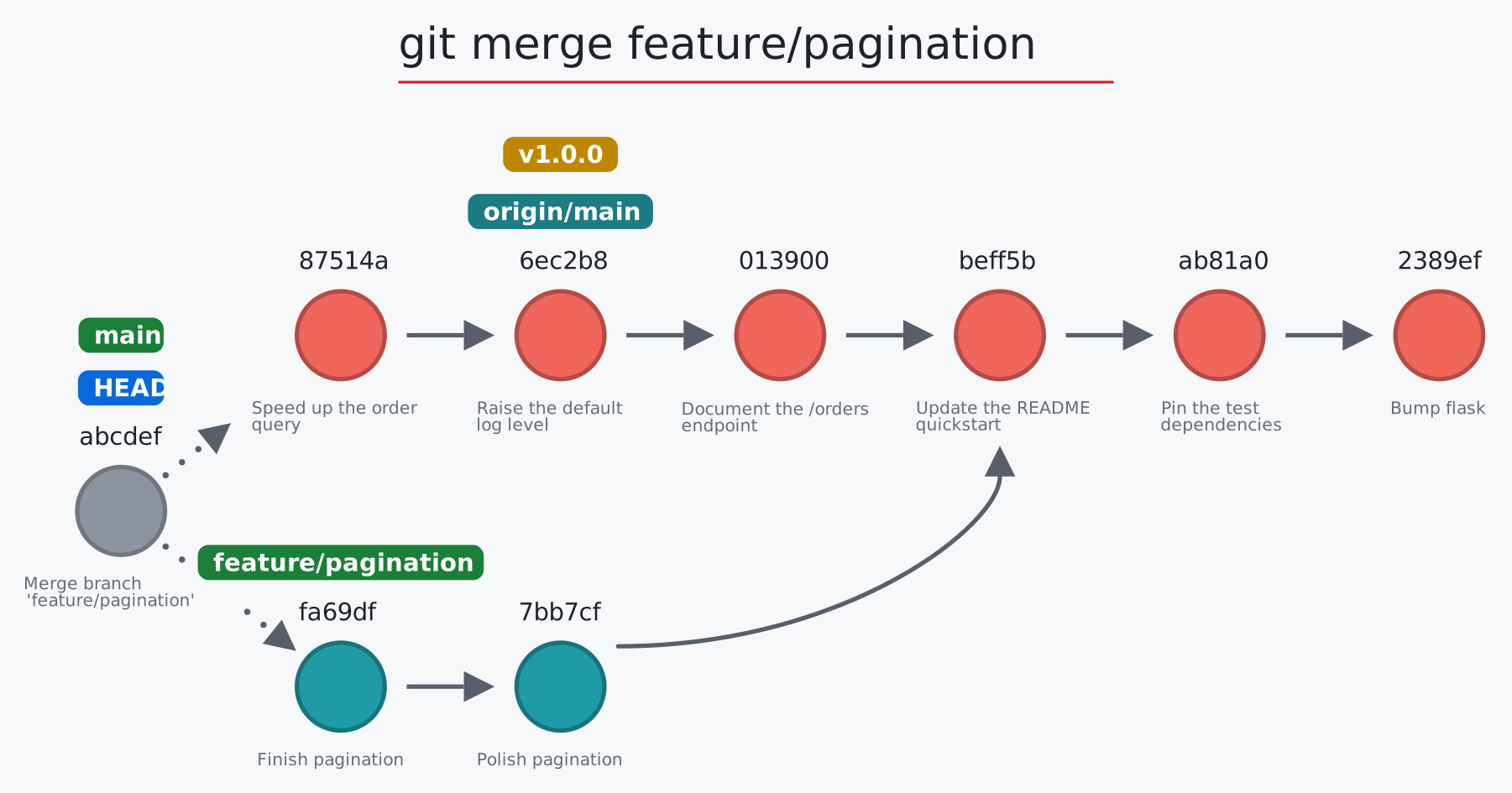
Usage: git-sim merge <branch> [-m "Commit message"] [--no-ff|--squash] | git-sim merge --continue|--abort
- Specify
<branch>as the branch name to merge into the active branch - If desired, specify a commit message with the
-moption - Simulated output will depict a fast-forward merge if possible
- Otherwise, a three-way merge will be depicted
- To force a merge commit when a fast-forward is possible, use
--no-ff - If merge fails due to merge conflicts, the conflicting files are displayed
--squashstages the branch's changes as one set and commits nothing: HEAD doesn't move, and the branch is not recorded as merged--continue,--abortact on a merge stopped on a conflict: git-sim runs the real command in a copy of the repository (yours is never touched) and draws what it would do: new commits fade in, HEAD and the branch move, commits left behind turn gold, and a new conflict is listed
git mv: move or rename a tracked file
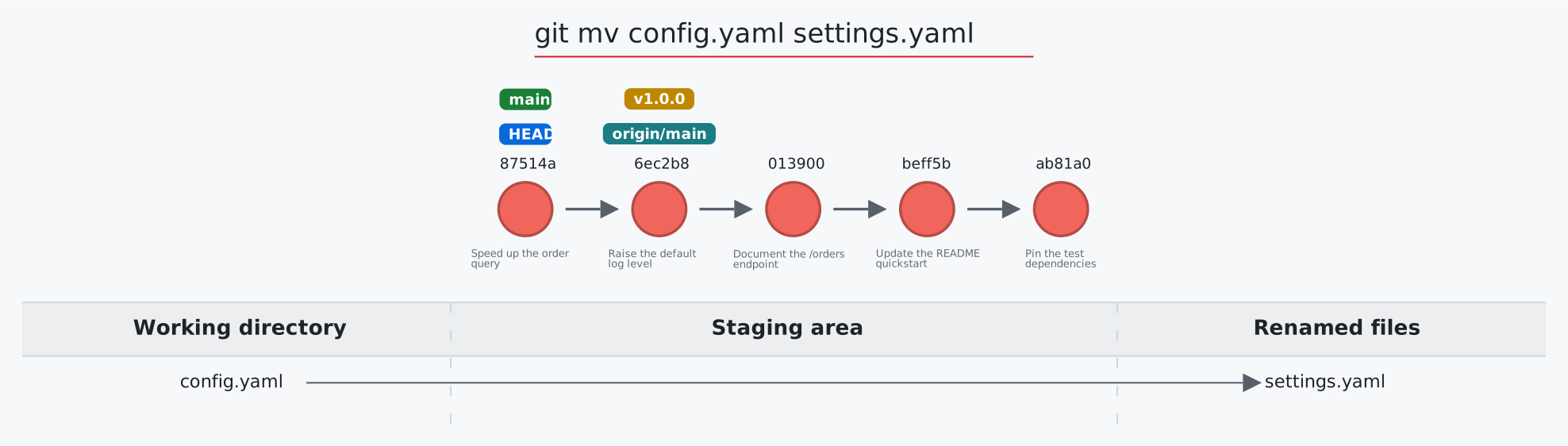
Usage: git-sim mv <file> <new file>
- Specify
<file>as file to update name/path - Specify
<new file>as new name/path of file - Simulated output will show the name/path of the file being updated
- Note that simulated output will also show the most recent 5 commits on the active branch
git pull: fetch and integrate a remote branch
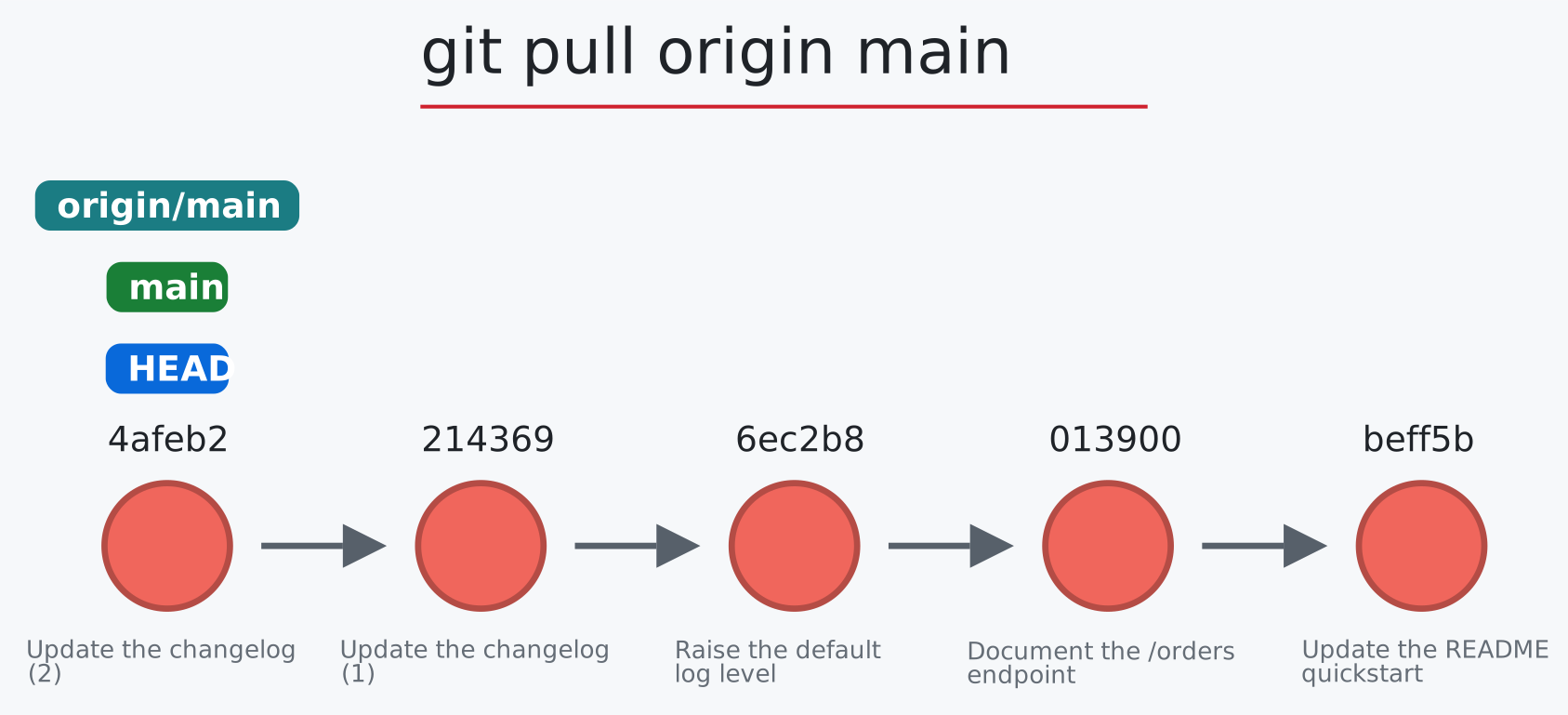
Usage: git-sim pull [--rebase] [<remote> <branch>]
- Pulls the specified
<branch>from the specified<remote>to the local repo - If
<remote>and<branch>are not specified, the active branch is pulled from the default remote - If merge conflicts occur, they are displayed in a table
--rebase/-rreplays your local commits on top of what was fetched instead of merging: the copies fade in, and the originals are drawn below in gold
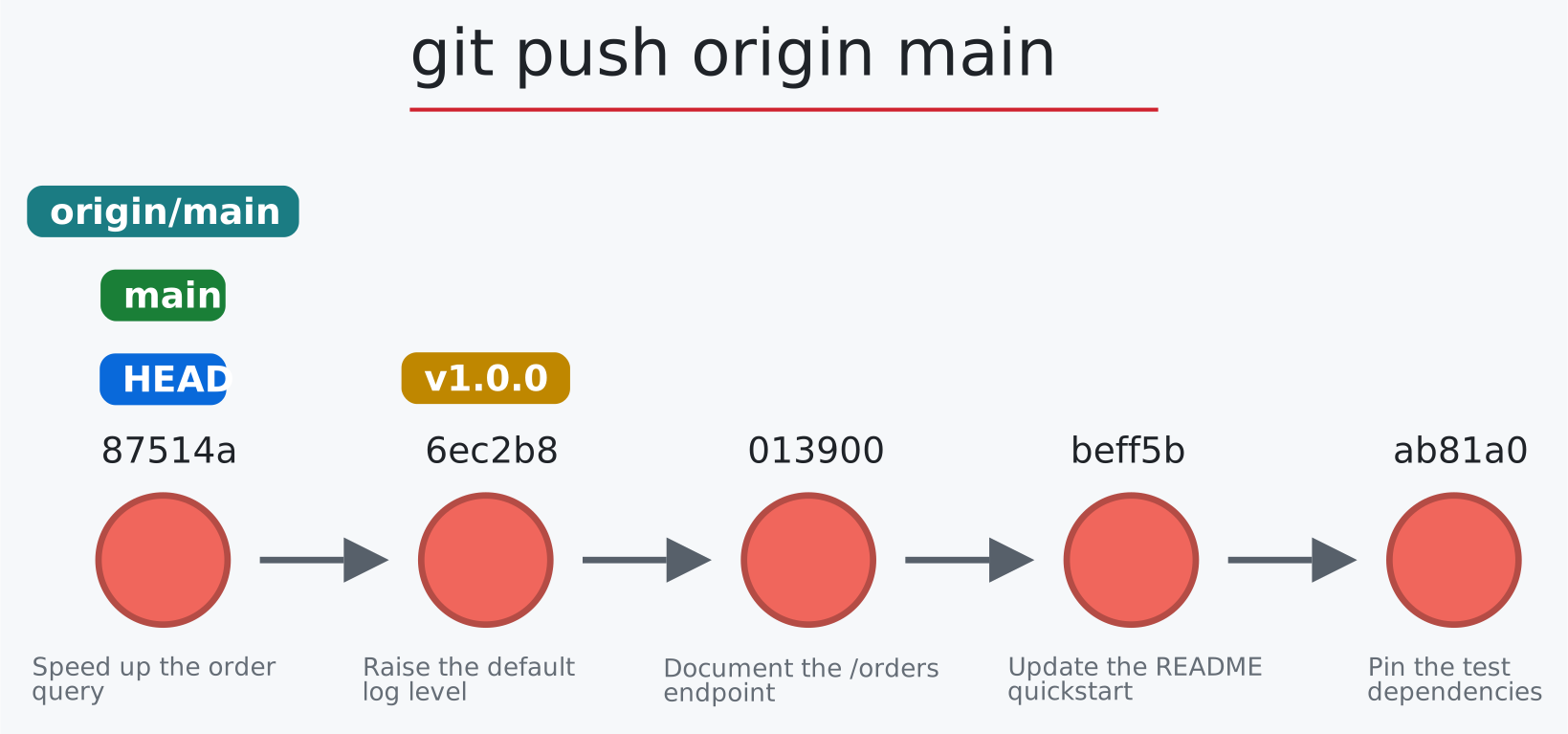
git push: send commits, tags, or deletions to a remote
Usage: git-sim push [<remote> <branch>] [--force|--force-with-lease] | git-sim push <remote> --delete <branch|tag> | git-sim push <remote> <tag> | git-sim push --tags
- Pushes the specified
<branch>to the specified<remote>and displays the local result --forceoverwrites the remote branch: commits that only the remote had are drawn in gold, since nobody can reach them from the remote afterwards--force-with-leasedoes the same only if the remote still matches your last fetch; otherwise the simulation shows the rejection- If
<remote>and<branch>are not specified, the active branch is pushed to the default remote --delete/-ddeletes the branch on the remote: its remote-tracking label fades out, and commits no other remote branch reaches turn gold--tagspushes every tag the remote doesn't have (and no branches): each gets anon originlabelgit-sim push <remote> <tag>pushes one tag the same way (and says how many commits go with it);--delete <tag>deletes a tag on the remote, itson originlabel turning intodeleted on origin, while your own tag stays- If the push fails due to remote changes that don't exist in the local repo, a message is included telling the user to pull first, along with color coding which commits need to be pulled
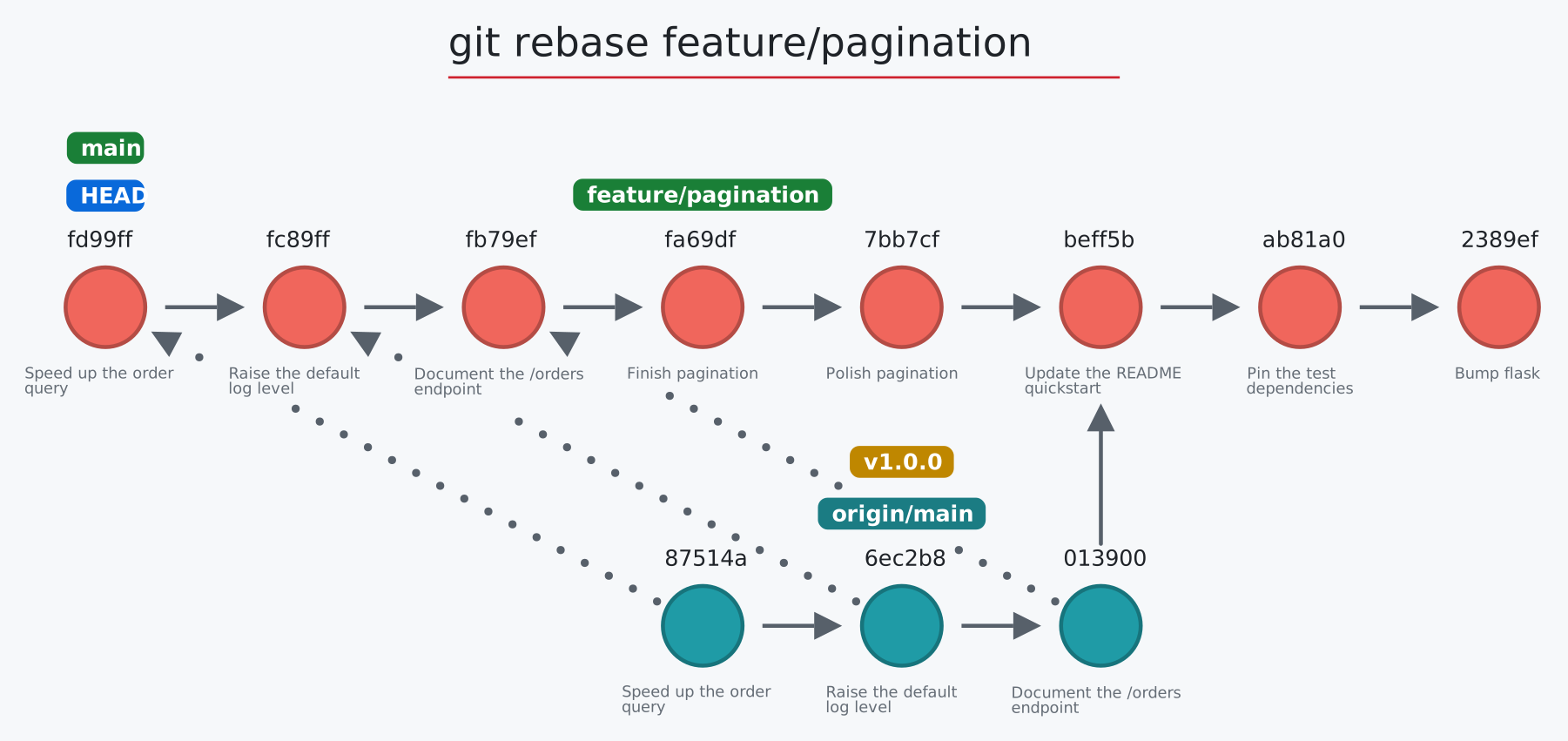
git rebase: replay commits on a new base
Usage: git-sim rebase <new-base> [--onto <commit>] [-i [--todo <file>]] | git-sim rebase --continue|--abort|--skip
- Specify
<new-base>as the branch name to rebase the active branch onto --onto <commit>replays the commits after<new-base>on top of<commit>instead-ireplays each commit individually;--todo <file>takes a rebase todo list (pick,reword,edit,squash,fixup,drop+ sha) so squashes fold into the previous copy and drops are shown in gold--continue,--abortand--skipact on a rebase stopped on a conflict: git-sim runs the real command in a copy of the repository (yours is never touched) and draws what it would do: new commits fade in, HEAD and the branch move, commits left behind turn gold, and a new conflict is listed
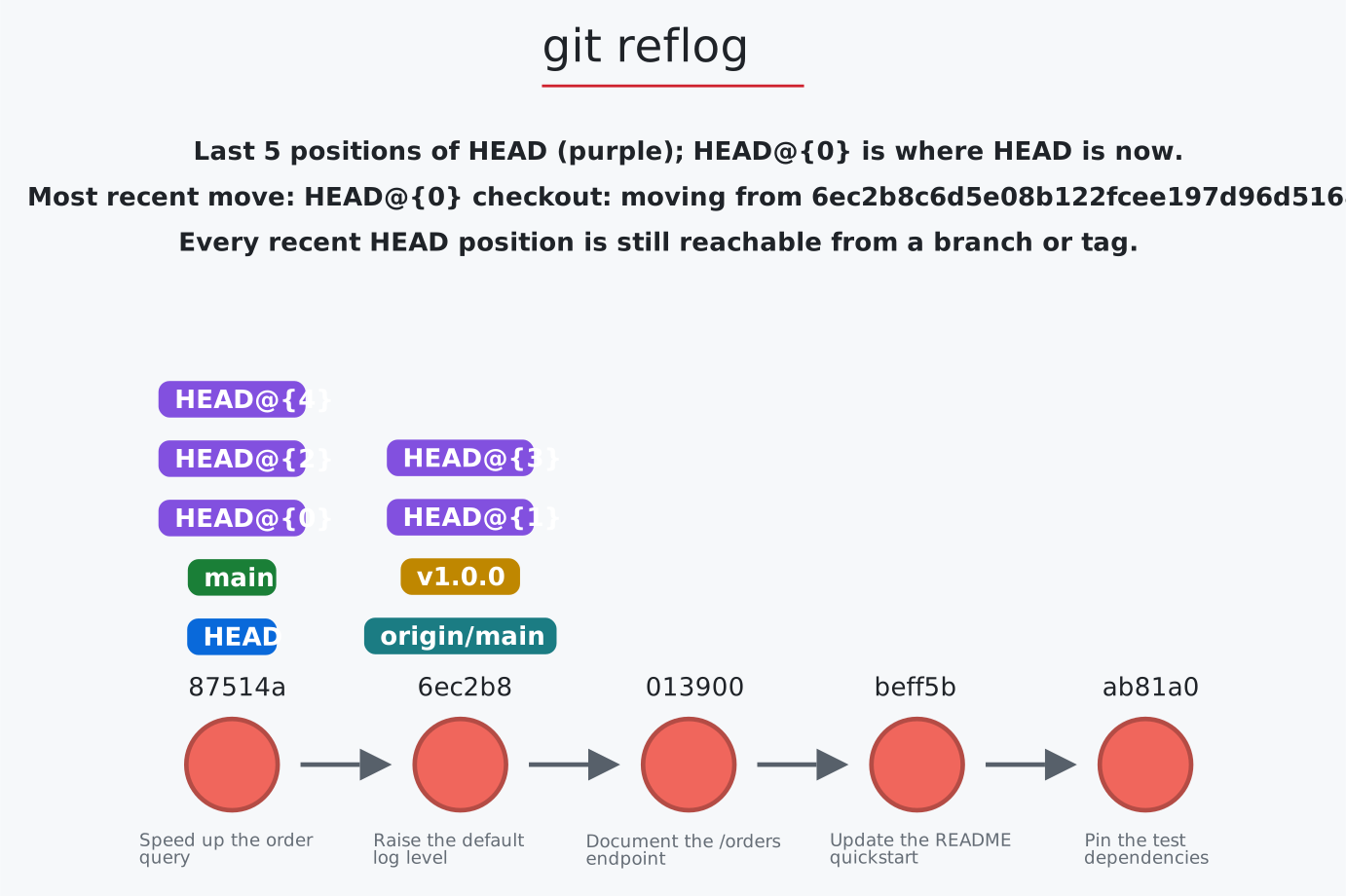
git reflog: where HEAD has been, and what you can recover
Usage: git-sim reflog [-n <number>]
- Draws the last
<number>positions of HEAD (default 5) as purpleHEAD@{k}labels - Commits that no branch or tag reaches any more are drawn in gold, with the
git reset --hard HEAD@{k}command that brings them back
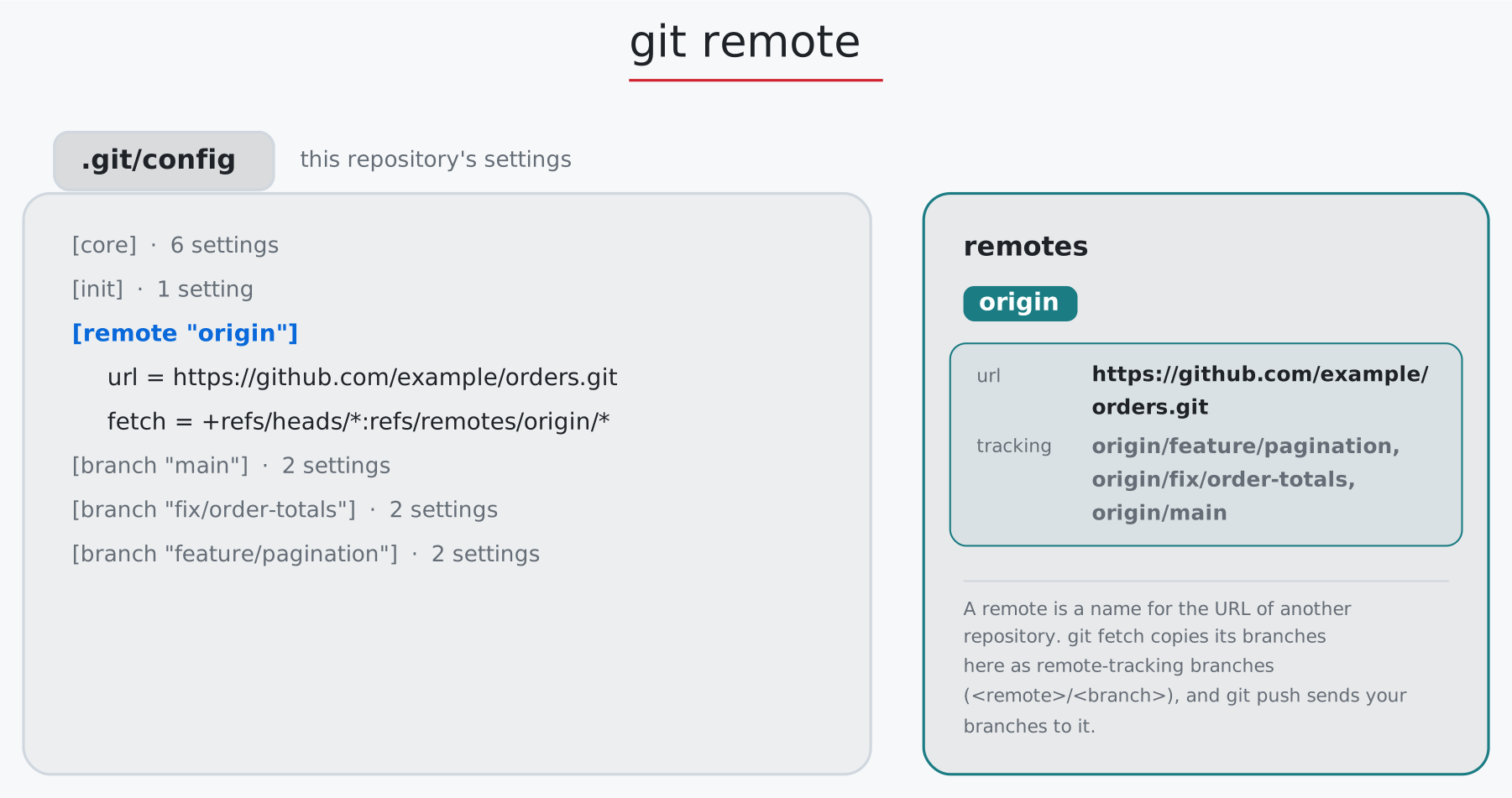
git remote: add, rename, remove, and inspect remotes
Usage: git-sim remote [-v] [add|rename|remove|get-url|set-url|show] [<remote>] [<url>]
- Simulated output shows
.git/configwith the remote's section, beside a card naming the remote, its URL, and what the command does: a remote added, renamed, removed or pointed at a new URL - Running
git-sim remotewith no options will list all existing remotes and their details -v/--verboselists each remote's fetch and push URLs, asgit remote -vprints themshow <remote>asks the remote for its branches and reports likegit remote show: its URLs and HEAD branch, each branch as tracked, new (not fetched yet) or stale (deleted there, still here), and the local branches configured forgit pullandgit push, whose settings light up in.git/config. Nothing changes
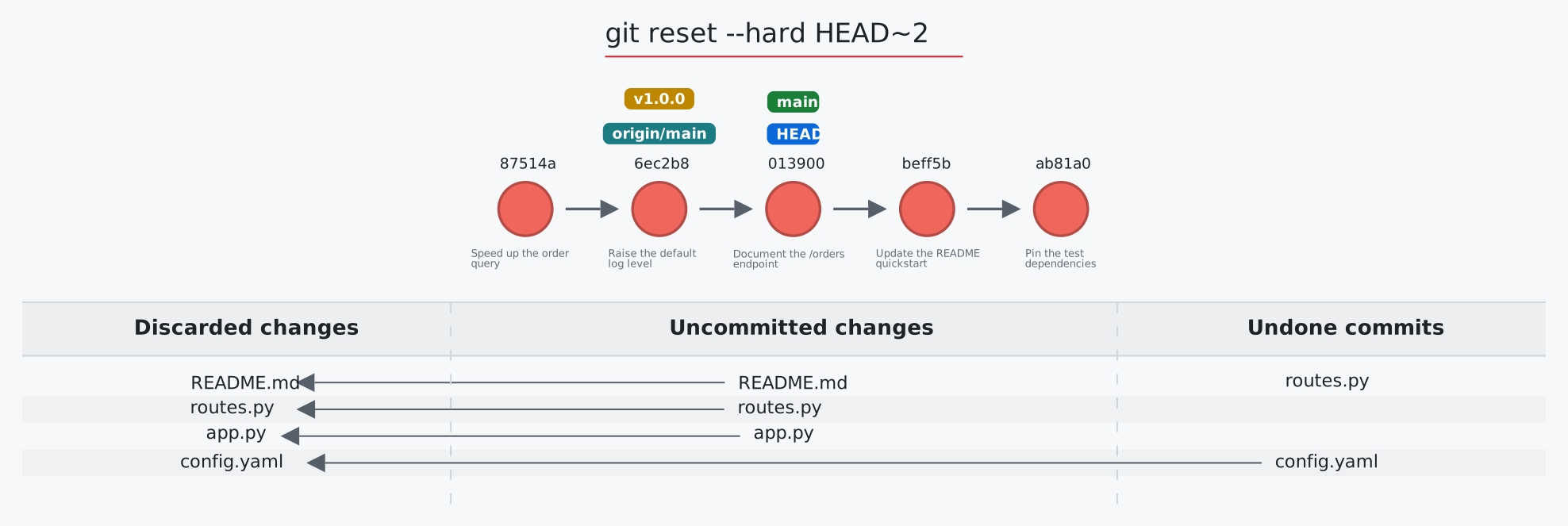
git reset: move the branch, and maybe discard changes
Usage: git-sim reset <reset-to> [--mixed|--soft|--hard] | git-sim reset [<commit>] <path>...
- Specify
<reset-to>as any commit id, branch name, tag, or other ref to simulate reset to from the current HEAD (default:HEAD) - With paths, HEAD stays put and the named files are unstaged (their index entries return to the commit's version)
- As with a normal git reset command, default reset mode is
--mixed, but can be specified using--soft,--hard, or--mixed - Simulated output will show branch/HEAD resets and resulting state of the working directory, staging area, and whether any file changes would be deleted by running the actual command
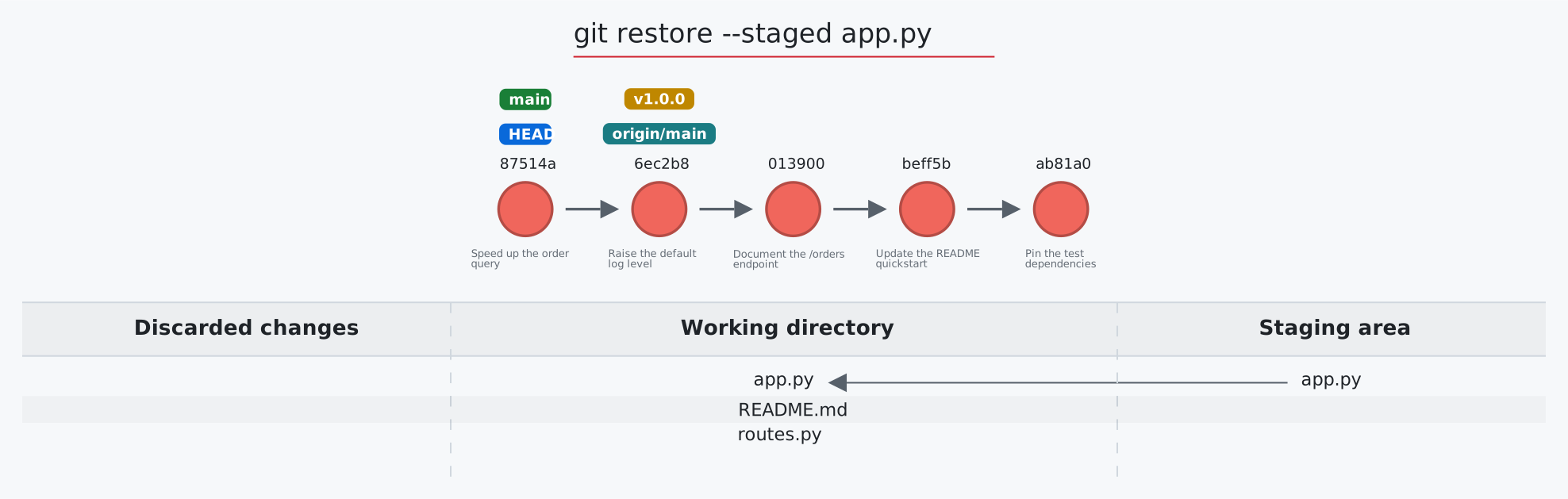
git restore: unstage files or discard their changes
Usage: git-sim restore [--staged] <file 1> <file 2> ... <file n>
- Specify one or more
<file>as a modified working directory file, or staged file - Simulated output will show files being moved back to the working directory or discarded changes
- Note that simulated output will also show the most recent 5 commits on the active branch
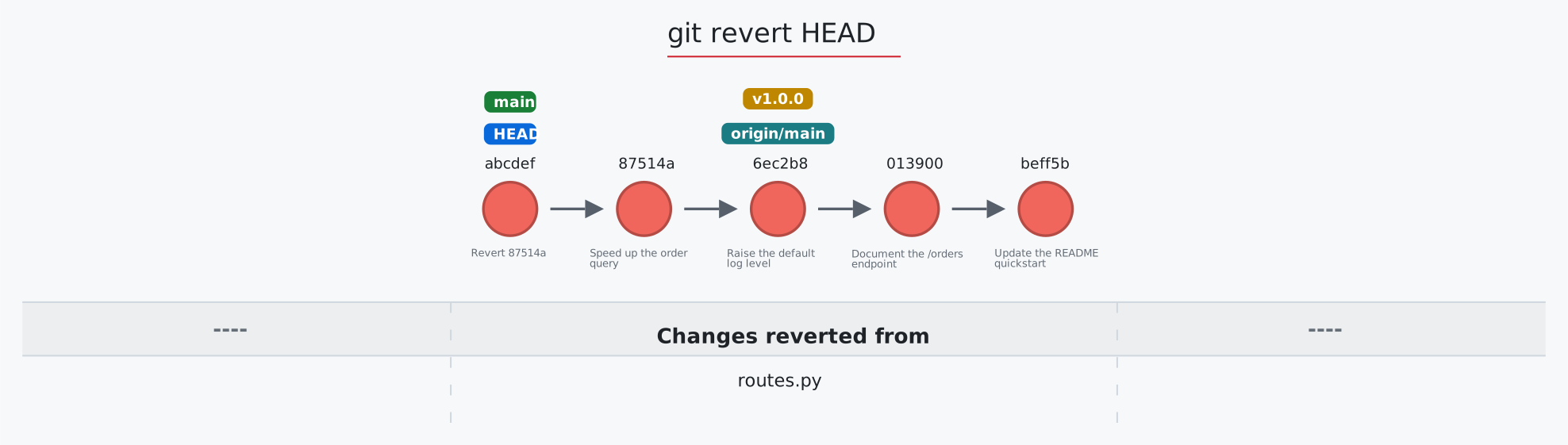
git revert: undo a commit with a new commit
Usage: git-sim revert <to-revert> [-m <parent-number>] [-n]
- Specify
<to-revert>as any commit id, branch name, tag, or other ref to simulate revert for - Reverting a merge commit needs
-m <parent-number>(as in git); the reverted files are those the merge brought in relative to that parent -n/--no-commitstages the reverse changes without creating a commit- Simulated output will show the new commit which reverts the changes from
<to-revert> - Simulated output will include the next 4 most recent commits on the active branch
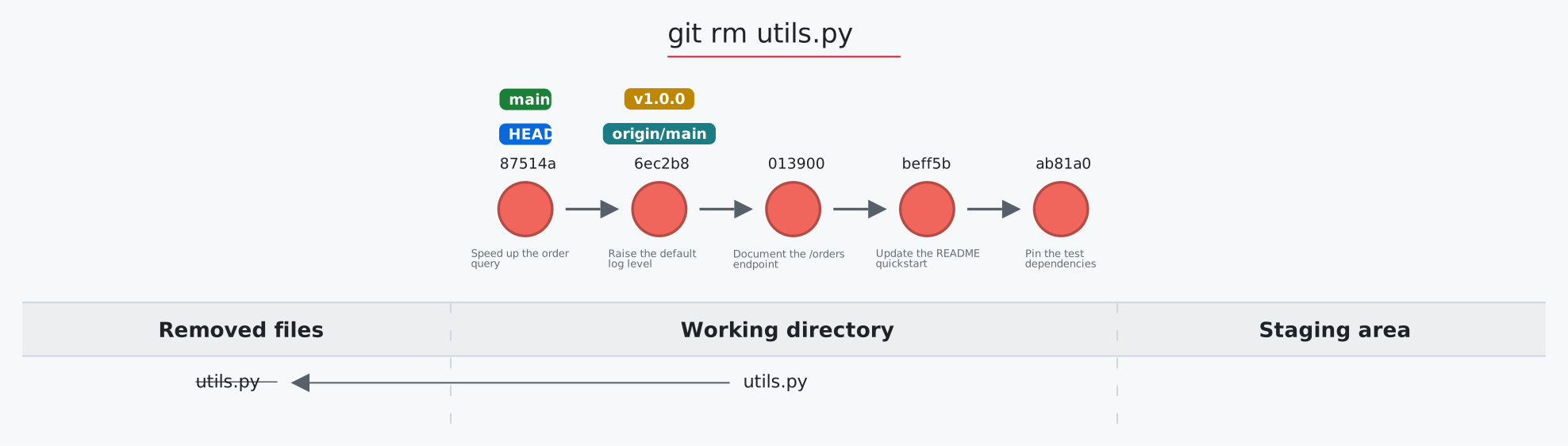
git rm: delete tracked files
Usage: git-sim rm [--cached] <file 1> <file 2> ... <file n>
- Specify one or more
<file>as a tracked file - Simulated output will show files being removed from Git tracking
--cachedstops tracking the files but keeps them on disk: each turns untracked while its deletion is staged- Note that simulated output will also show the most recent 5 commits on the active branch
git shortlog: commits per author
Usage: git-sim shortlog [-s] [-n] [-e] [<revision>|<A>..<B>] (short flags combine: -sn, -sne)
- Counts the commits of a revision (default
HEAD) or range per author, asgit shortlogdoes: a card ranks the authors with their count and a bar each, by name or, with-n/--numbered, most commits first - Without
-s/--summaryeach author's first commit subjects are listed under their name;-e/--emailadds their addresses - The drawn commits take their author's color in the graph
git show: a commit and the files it changed
Usage: git-sim show [<commit>|<tag>|<commit>:<path>]
- Highlights the commit shown (default
HEAD) and, in a card under the graph, lists the files it changed likegit show --stat; an annotated tag's tagger and message are noted - For a merge commit the files are compared with its first parent (git prints a combined diff)
<commit>:<path>shows the start of one file (or a directory listing) as it was in that commit
git stash: set changes aside, and bring them back
Usage: git-sim stash [push] [-u] [-m <message>] <file> | git-sim stash pop|apply | git-sim stash list|show|drop|clear [<stash-index>]
- Specify one or more
<file>as a modified working directory file, or staged file - If no
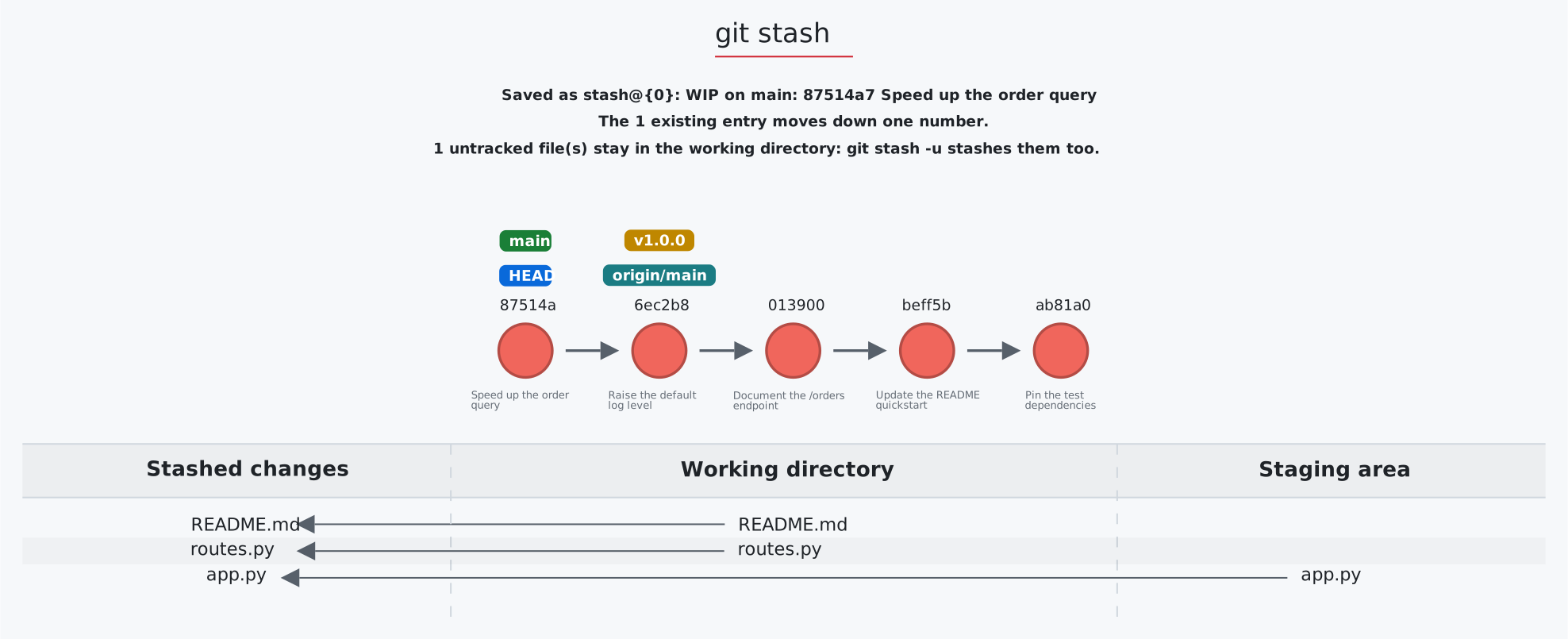
<file>is specified, all available files will be included -u/--include-untrackedstashes untracked files too (without it, a note counts the ones left behind);-mnames the entry, and a note shows it asgit stash listwilllist,show,dropandcleardraw the stash as a stack of entries, newest (stash@{0}) on top: each card has the entry's message, its file and line counts, and the commit it was made on (short sha and message, not the history around it);dropfades the dropped entry out and slides the ones below it up a number,clearfades them all out, andshowhighlights the entry and lists its files likegit stash show --stat- Simulated output will show files being moved in/out of the Git stash
- Note that simulated output will also show the most recent 5 commits on the active branch
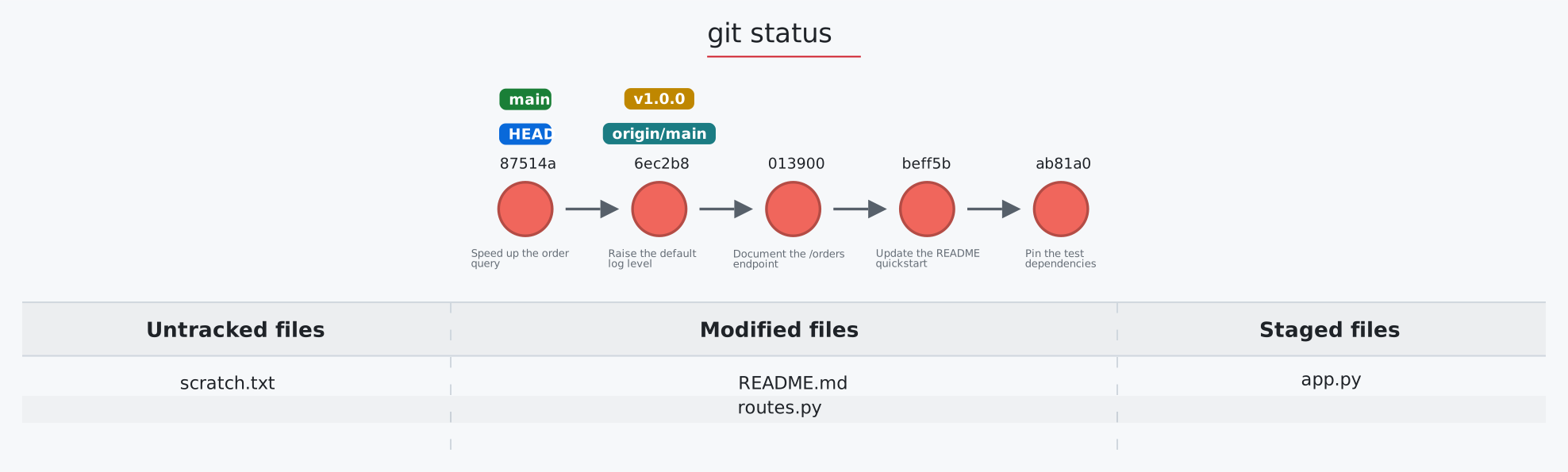
git status: the working directory and the staging area
Usage: git-sim status
- Simulated output will show the state of the working directory, staging area, and untracked files
- Note that simulated output will also show the most recent 5 commits on the active branch
git submodule: repositories inside a repository
Usage: git-sim submodule [status|add <url> [<path>]|init|update [--init]|deinit [--force] <path>]
- Draws the superproject's history plus a table with one row per submodule: its path, the pinned commit, and its state
addrecords a new pinned submodule;update --initinitializes and checks out;deinitempties the submodule's working tree (refused without--forcewhen it has local changes)
git switch: switch branches, or create one
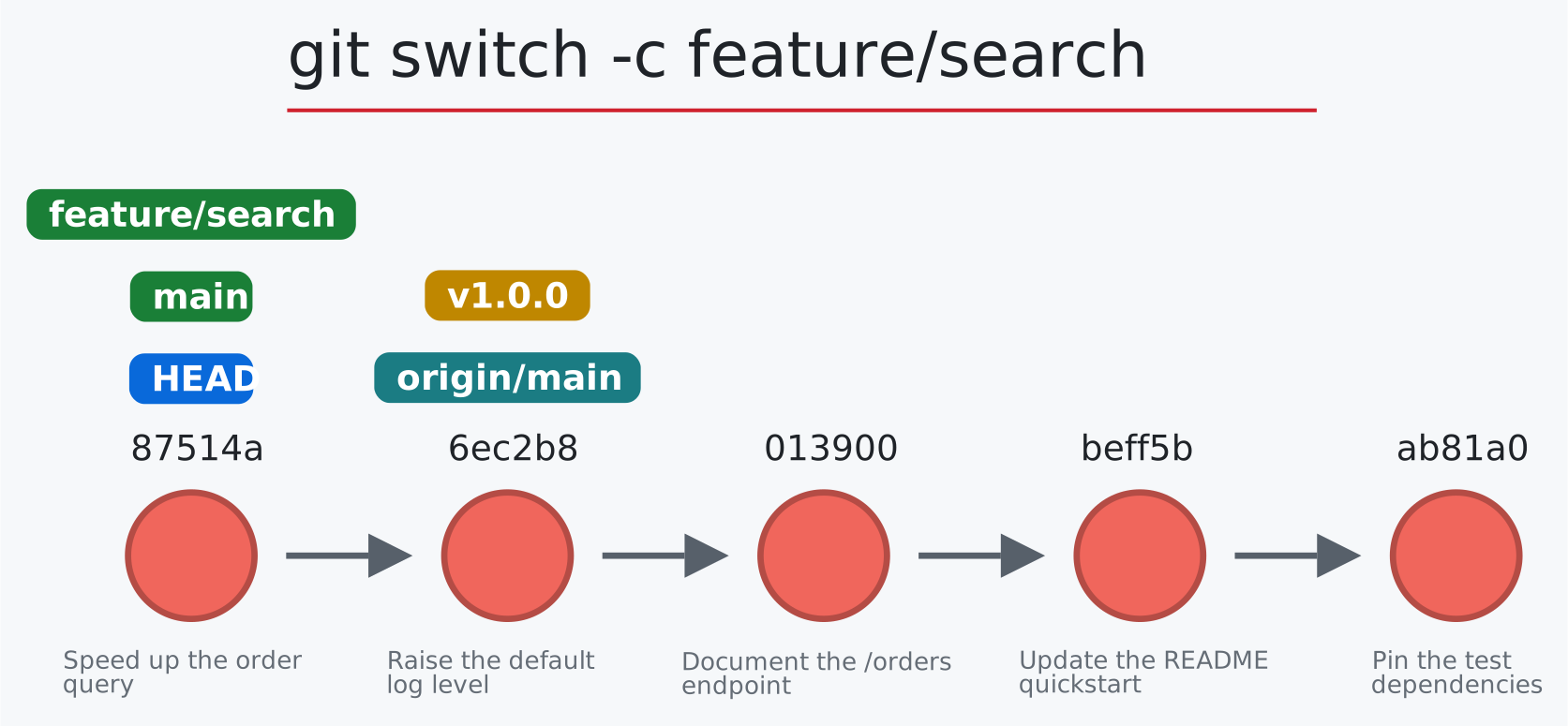
Usage: git-sim switch [-c] <branch> [<start-point>] | git-sim switch -
- Switches the checked-out branch to
<branch>, i.e. movesHEADto the specified<branch> - The
-cflag creates a new branch with the specified name<branch>and switches to it, assuming it doesn't already exist; with a<start-point>the branch starts there, and a remote-tracking start point (origin/x) becomes its upstream git-sim switch -goes back to the previous branch (@{-1}in the reflog), labeled under its commit- A
<branch>only a remote has (justorigin/<branch>exists) is made locally at the same commit, tracking it, as git does
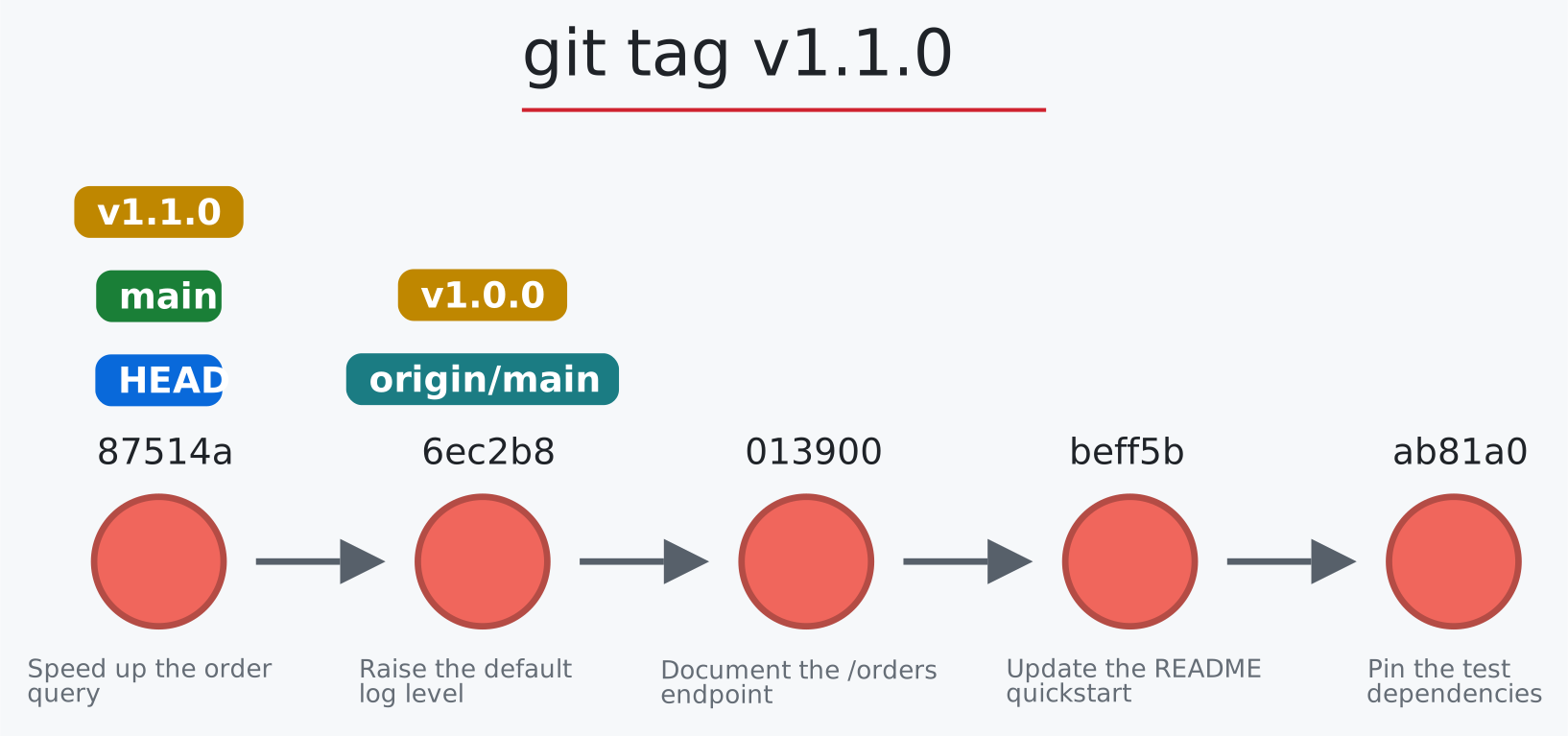
git tag: label a commit
Usage: git-sim tag <new tag name> [<commit>] | git-sim tag -a <name> -m "<message>" [<commit>] | git-sim tag -d <name> | git-sim tag -l ["<pattern>"]
- Specify
<new tag name>as the name of the new tag to simulate creation of - Simulated output will show the newly created tag ref along with the most recent 5 commits on the active branch
-awith-m(or-malone) makes an annotated tag: a card under the graph shows the tag object it writes, with the commit it points at, the tagger, the date and the message-l/--listlists the tags in a card, highlighting the ones matching the pattern (a glob, such as"v1.*")
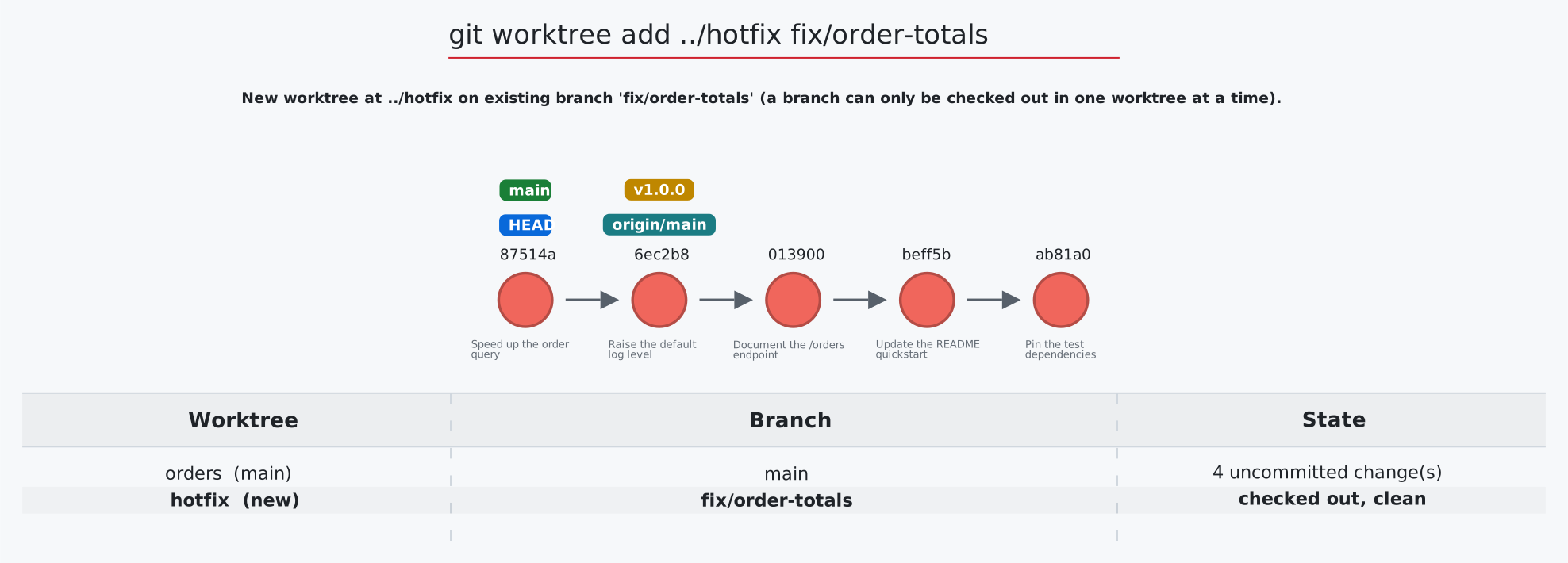
git worktree: more than one working directory
Usage: git-sim worktree [list|add [-b <new-branch>] <path> [<branch>]|remove [--force] <path>|prune]
- Draws the commit graph plus a table with one row per worktree: its directory, branch and state (clean, N uncommitted changes, directory missing)
removeis refused (as in git) when the worktree has uncommitted changes unless--forceis given, in which case the row is struck through and the deleted change count shownprunestrikes through worktree records whose directory no longer exists
$ git-sim [global options] <subcommand> [subcommand options]The ones you'll reach for most:
--img-format png (or jpg, svg): a static image instead of the interactive page
--animate: an .mp4 video instead (needs the extras install below)
--dark-mode: the dark color scheme
--all, -n <number>: every branch, and how many commits per branch
--open-in local: open the saved page instead of the hosted viewer
--media-dir <path>: where output is saved (git-sim media-dir prints the default)
Every option can also be set with an environment variable named git_sim_ plus the option, such as git_sim_dark_mode=true or git_sim_img_format=png. An option on the command line wins over the variable.
All global options
The [global options] apply to the overarching git-sim simulation itself, including:
--img-format: Output format, i.e. html (default: the interactive page), jpg, png, or svg (the graph alone, for embedding in a page). Set git_sim_img_format=jpg in your environment to make an image the default.
--open-in: Where the interactive page opens: hosted (default) shows it in the git-sim viewer at initialcommit.com, local opens the saved .html file. The page is saved locally either way, and the hosted page says where. Set git_sim_open_in=local to make local the default.
--reverse, -r / --no-reverse: By default the newest commit is on the left and arrows point right toward parents, so history reads left to right. --no-reverse puts the newest commit on the right with arrows pointing left, the original layout.
-n <number>: Number of commits to display from each branch head.
--all: Display all local branches in the log output.
--animate: Instead of outputting a static image, animate the Git command behavior in a .mp4 video.
--color-by author: Color commits by parameter, such as author.
--invert-branches: Invert positioning of branches by reversing order of multiple parents where applicable.
--hide-merged-branches: Hide commits from merged branches, i.e. only display mainline commits.
--media-dir: The path at which to store the simulated output media files.
-d: Disable the automatic opening of the image/video file after generation. Useful to avoid errors in console mode with no GUI.
--dark-mode: Use the dark color scheme instead of the default light one (--light-mode is still accepted and does nothing).
--stdout: Write raw image data to stdout while suppressing all other program output. Writes a png unless --img-format jpg is given.
--output-only-path: Only output the path to the generated media file to stdout. Useful for other programs to ingest.
--quiet, -q: Suppress all output except errors.
--highlight-commit-messages: Make commit message text bigger and bold, and hide commit ids.
--style: Graphical style of the output image or animated video, i.e. clean (default) or thick.
--compact: Draw for a small space, such as a card or a thumbnail: no title, no commit messages under the commits (hovering one still shows it), a file table only as big as its rows, and just the files for a command that doesn't touch commits (add, restore, rm, mv, clean, status).
Animation-only global options (to be used in conjunction with --animate):
--video-format: Output format for the video file, i.e. mp4 or webm. Default output format is mp4.
--speed=n: Set the multiple of animation speed of the output simulation, n can be an integer or float, default is 1.5.
--low-quality: Render the animation in low quality to speed up creation time, recommended for non-presentation use.
--show-intro: Add an intro sequence with custom logo and title.
--show-outro: Add an outro sequence with custom logo and text.
--title=title: Custom title to display at the beginning of the animation.
--logo=logo.png: The path to a custom logo to use in the animation intro/outro.
--outro-top-text: Custom text to display above the logo during the outro.
--outro-bottom-text: Custom text to display below the logo during the outro.
--font: Font family used to display rendered text.
For convenience, git-sim ships in 3 tiers. Core is the default and the right choice for the vast majority of users:
| Tier | Install | Includes |
|---|---|---|
| core (default) | pip install git-sim |
git command simulation, pre-flight engine, MCP server (git-sim-mcp), Claude Code hook (git-sim-hook) |
| extras | pip install "git-sim[extras]" |
everything in core, plus animated video output (--animate) via Manim (install Manim's own system dependencies first, see below) |
| min | see below | pre-flight engine, text commit graph and MCP server only, with no image rendering, for headless machines |
For extras tier:
Animated video (--animate) uses Manim, which needs FFmpeg and other system packages: install them first with the Manim guide for Windows, macOS, Linux, or Conda. On macOS, it is recommended to use a Homebrew Python or a virtual environment rather than the system Python.
For min tier:
pip extras can only add packages, so the min tier is the core package installed without its rendering dependencies (skia-python, numpy):
$ pip install --no-deps git-sim
$ pip install gitpython "mcp>=2.0" typer pydantic-settings fonttools git-dummyRun git-sim in a Docker container
- Clone down the git-sim repository:
$ git clone https://github.com/initialcommit-com/git-sim.git- Browse into the
git-simfolder and build the Docker image:
$ docker build -t git-sim .- Run git-sim commands as follows:
- Windows:
docker run --rm -v %cd%:/usr/src/git-sim git-sim [global options] <subcommand> [subcommand options] - MacOS / Linux:
docker run --rm -v $(pwd):/usr/src/git-sim git-sim [global options] <subcommand> [subcommand options]
- Windows:
Optional: On MacOS / Linux / or GitBash in Windows, create an alias for the long docker command so you can run it as a normal git-sim command. To do so add the following line to your .bashrc or equivalent, then restart your terminal:
git-sim() { docker run --rm -v $(pwd):/usr/src/git-sim git-sim "$@"; }This will enable you to run all the git-sim subcommands described above.
GitHub Actions: use git-sim to automatically evaluate PR's
Add this to your repo as .github/workflows/git-sim.yml:
name: git-sim
on:
  pull_request_target:
    types: [opened, synchronize, reopened]
permissions:
  contents: read
  pull-requests: write
jobs:
  check:
    runs-on: ubuntu-latest
    steps:
      - uses: actions/checkout@v4
        with:
          fetch-depth: 0
      - uses: initialcommit-com/git-sim/integrations/github-action@v0.4.0
When a new PR comes in, the git-sim GitHub Action automatically evaluates it, adding a comment with the risk level, the included commits, how to undo it, and a text commit graph. The visual, interactive graph is attached to the run as the artifact git-sim-pr-<number>.
To change how it runs, add a with: block under the uses: line:
      - uses: initialcommit-com/git-sim/integrations/github-action@v0.4.0
        with:
          mode: rebase
comment: "false"| Setting | Default | What it does |
|---|---|---|
mode |
merge |
merge checks merging the pull request into its base branch, rebase checks rebasing its commits onto the base |
comment |
"true" |
Post the report as a comment on the pull request |
artifact |
"true" |
Attach the interactive graph to the workflow run as a download |
python-version |
3.12 |
The Python that git-sim is installed with |
package |
git-sim |
What gets installed: the latest git-sim from PyPI, a pinned version like git-sim==0.4.0, or a Git URL |
token |
the workflow's own token | The token used to post the comment, to post as another account or bot |
The workflow runs on pull_request_target because GitHub skips pull_request workflows for pull requests with merge conflicts, which are the ones you most want checked. It also lets the Action comment on pull requests from forks. That's safe here because the Action never runs the pull request's code: it only reads its commits.
GitHub CLI: gh gitsim
With the GitHub CLI installed and logged in (gh auth login), install the extension from a clone of this repo:
$ git clone https://github.com/initialcommit-com/git-sim.git ~/git-sim
$ cd ~/git-sim/integrations/gh-gitsim
$ gh extension install .
Then, inside a clone of the pull request's repo:
$ gh gitsim pr 42           # what merging pull request #42 into its base would do
$ gh gitsim pr 42 rebase    # what rebasing it onto its base would do
gh gitsim pr simulates in a temporary worktree, so your checkout and branches are never touched. Any other gh gitsim command is the same as running git-sim. On Windows, gh runs the extension with the bash from Git for Windows.
Git-Sim is Free and Open-Source Software (FOSS). Your support will help me work on it (and other Git projects) full time!
Jacob Stopak - on behalf of Initial Commit